PowerShell Requires Chilkat v11.2.0+
PowerShell
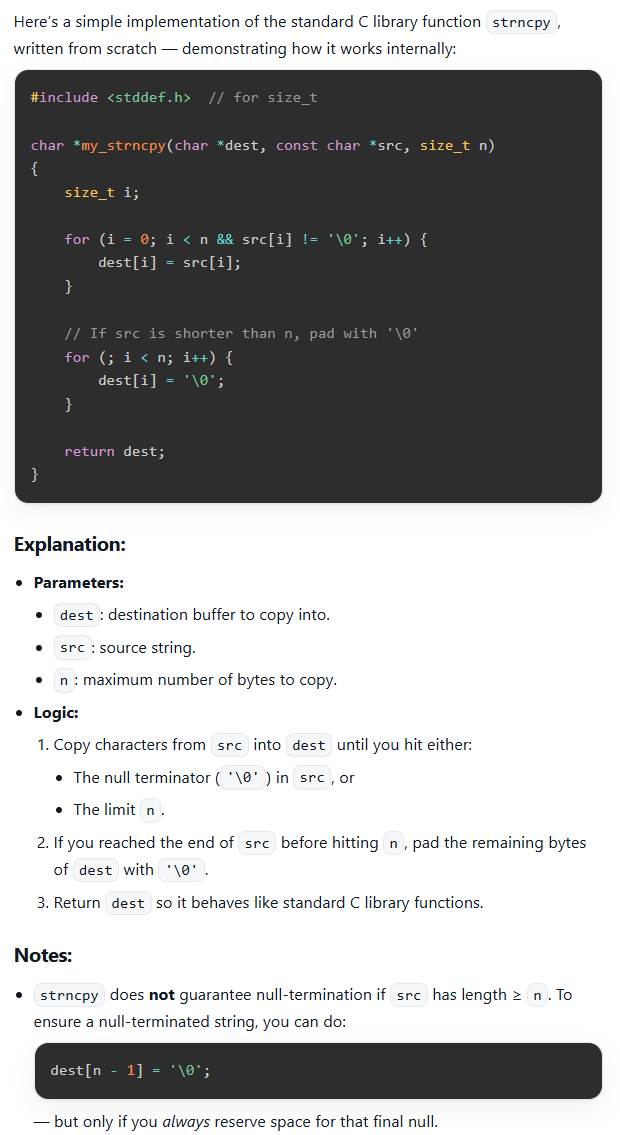
Markdown to HTML - Full Document, ChatGPT Theme with Code Syntax Highlighting
See more Markdown Examples
Demonstrates how to convert a complete Markdown document to HTML using the pre-defined "ChatGPT" theme but also with Cloudfare Prism's code syntax highlighting.Chilkat PowerShell Downloads
Add-Type -Path "C:\chilkat\ChilkatDotNet47-x64\ChilkatDotNet47.dll"

$success = $false

$success = $false

#  Select the pre-defined "ChatGPT" style.
$options = New-Object Chilkat.JsonObject
$options.UpdateString("theme","ChatGPT")

#  We can also set an option for the max-width, which by default is "72ch".
$options.UpdateString("ChatGPT.max-width","120ch")

#  We can add extra content to the bottom of the HTML head and body sections like this:
#  Here we are using the "tomorrow" theme.
$options.UpdateString("extraHead","<link rel=`"stylesheet`" href=`"https://cdnjs.cloudflare.com/ajax/libs/prism/1.29.0/themes/prism-tomorrow.min.css`" />")
$options.UpdateString("extraBody","<script src=`"https://cdnjs.cloudflare.com/ajax/libs/prism/1.29.0/prism.min.js`"></script><script src =`"https://cdnjs.cloudflare.com/ajax/libs/prism/1.29.0/plugins/autoloader/prism-autoloader.min.js`"></script>")

$sbMarkdown = New-Object Chilkat.StringBuilder
$sbHtml = New-Object Chilkat.StringBuilder

$success = $sbMarkdown.LoadFile("qa_data/markdown/test1.md","utf-8")
if ($success -eq $false) {
    $($sbMarkdown.LastErrorText)
    exit
}

$sbMarkdown.MarkdownToHtml($options,$sbHtml)
$sbHtml.ToCRLF()

$($sbHtml.GetAsString())

#  The sample markdown input for this example is identical to the one at Markdown to HTML - Full Document, Raw, where you can view it.

#  Sample HTML output as viewed in a browser:

#