Xojo Plugin
Xojo Plugin
Create CAdES p7m using AWS KMS to Sign in the Cloud
See more Signing in the Cloud Examples
Demonstrates how to create a CAdES p7m, using AWS KMS. The signing of the hash happens in the Cloud on AWS KMS. Everything else regarding the creation of CAdES happens locally within Chilkat.Note: This example requires Chilkat v9.5.0.96 or greater.
Chilkat Xojo Plugin Downloads
Dim success As Boolean
success = False
// This example assumes the Chilkat API to have been previously unlocked.
// See Global Unlock Sample for sample code.
// Load the certificate used for signing. The certificate's private key is stored in AWS KMS
// However, we still need the certificate locally (without private key).
Dim cert As New Chilkat.Cert
success = cert.LoadFromFile("qa_data/certs/myCert.cer")
If (success = False) Then
System.DebugLog(cert.LastErrorText)
Return
End If
// Here's a screenshot showing the key ID of a private key in AWS KMS:
// 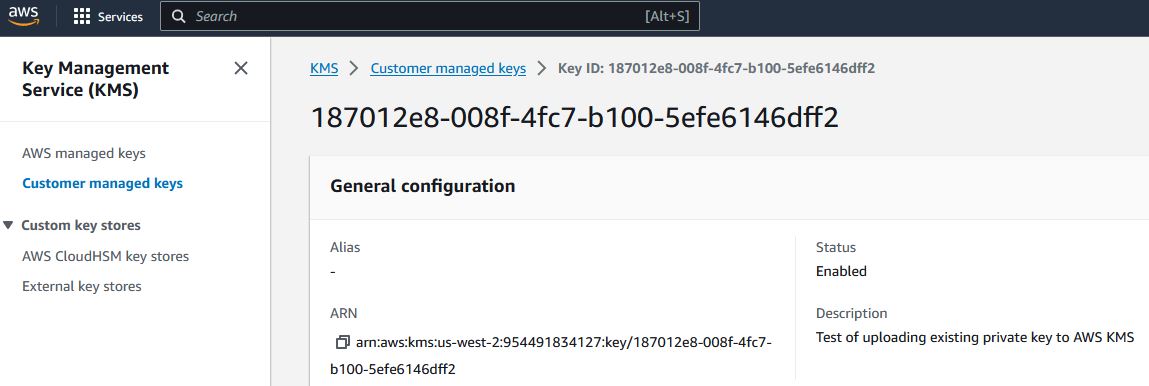 // To sign using AWS KMS,
// add the following lines of code to specify your AWS authentication credentials,
// and the ID of the KMS private key.
Dim jsonAwsKms As New Chilkat.JsonObject
// Set the "service" equal to "aws_kms" to tell Chilkat to use AWS KMS for signing.
success = jsonAwsKms.UpdateString("service","aws_kms")
success = jsonAwsKms.UpdateString("access_key","ACCESS_KEY")
success = jsonAwsKms.UpdateString("secret_key","SECRET_KEY")
// Make sure to specify the correct region for your case.
success = jsonAwsKms.UpdateString("region","us-west-2")
// In the above screenshot, our key ID is "187012e8-008f-4fc7-b100-5efe6146dff2". You will use your key ID.
success = jsonAwsKms.UpdateString("key_id","187012e8-008f-4fc7-b100-5efe6146dff2")
success = cert.SetCloudSigner(jsonAwsKms)
Dim crypt As New Chilkat.Crypt2
success = crypt.SetSigningCert(cert)
If (success = False) Then
System.DebugLog(crypt.LastErrorText)
Return
End If
// The CadesEnabled property applies to all methods that create PKCS7 signatures.
// To create a CAdES-BES signature, set this property equal to true.
crypt.CadesEnabled = True
crypt.HashAlgorithm = "sha256"
Dim signedAttrs As New Chilkat.JsonObject
success = signedAttrs.UpdateInt("contentType",1)
success = signedAttrs.UpdateInt("signingTime",1)
success = signedAttrs.UpdateInt("messageDigest",1)
success = signedAttrs.UpdateInt("signingCertificateV2",1)
crypt.SigningAttributes = signedAttrs.Emit()
// You can sign any type of file..
Dim inputXmlPath As String
inputXmlPath = "qa_data/e-Invoice.xml"
Dim outputP7mPath As String
outputP7mPath = "qa_output/signed.p7m"
// Create the CAdES-BES attached signature, which contains the original data.
// Chilkat will build the .p7m locally, but will (internally) use ARSS
// to do the RSA signing remotely.
success = crypt.CreateP7M(inputXmlPath,outputP7mPath)
If (success = False) Then
System.DebugLog(crypt.LastErrorText)
Return
End If
System.DebugLog("Success.")
// To sign using AWS KMS,
// add the following lines of code to specify your AWS authentication credentials,
// and the ID of the KMS private key.
Dim jsonAwsKms As New Chilkat.JsonObject
// Set the "service" equal to "aws_kms" to tell Chilkat to use AWS KMS for signing.
success = jsonAwsKms.UpdateString("service","aws_kms")
success = jsonAwsKms.UpdateString("access_key","ACCESS_KEY")
success = jsonAwsKms.UpdateString("secret_key","SECRET_KEY")
// Make sure to specify the correct region for your case.
success = jsonAwsKms.UpdateString("region","us-west-2")
// In the above screenshot, our key ID is "187012e8-008f-4fc7-b100-5efe6146dff2". You will use your key ID.
success = jsonAwsKms.UpdateString("key_id","187012e8-008f-4fc7-b100-5efe6146dff2")
success = cert.SetCloudSigner(jsonAwsKms)
Dim crypt As New Chilkat.Crypt2
success = crypt.SetSigningCert(cert)
If (success = False) Then
System.DebugLog(crypt.LastErrorText)
Return
End If
// The CadesEnabled property applies to all methods that create PKCS7 signatures.
// To create a CAdES-BES signature, set this property equal to true.
crypt.CadesEnabled = True
crypt.HashAlgorithm = "sha256"
Dim signedAttrs As New Chilkat.JsonObject
success = signedAttrs.UpdateInt("contentType",1)
success = signedAttrs.UpdateInt("signingTime",1)
success = signedAttrs.UpdateInt("messageDigest",1)
success = signedAttrs.UpdateInt("signingCertificateV2",1)
crypt.SigningAttributes = signedAttrs.Emit()
// You can sign any type of file..
Dim inputXmlPath As String
inputXmlPath = "qa_data/e-Invoice.xml"
Dim outputP7mPath As String
outputP7mPath = "qa_output/signed.p7m"
// Create the CAdES-BES attached signature, which contains the original data.
// Chilkat will build the .p7m locally, but will (internally) use ARSS
// to do the RSA signing remotely.
success = crypt.CreateP7M(inputXmlPath,outputP7mPath)
If (success = False) Then
System.DebugLog(crypt.LastErrorText)
Return
End If
System.DebugLog("Success.")