VBScript
VBScript
Sign a PDF (Simplest Possible Example)
See more PDF Signatures Examples
This example demonstrates how to a sign a PDF using mostly default options in the simplest way possible.Chilkat VBScript Downloads
Dim fso, outFile
Set fso = CreateObject("Scripting.FileSystemObject")
'Create a Unicode (utf-16) output text file.
Set outFile = fso.CreateTextFile("output.txt", True, True)
success = 0
' This example requires the Chilkat API to have been previously unlocked.
' See Global Unlock Sample for sample code.
set pdf = CreateObject("Chilkat.Pdf")
' Load a PDF to be signed.
' The "hello.pdf" is available at https://chilkatsoft.com/hello.pdf
success = pdf.LoadFile("qa_data/pdf/hello.pdf")
If (success = 0) Then
outFile.WriteLine(pdf.LastErrorText)
WScript.Quit
End If
' Options for signing are specified in JSON.
set json = CreateObject("Chilkat.JsonObject")
' In most cases, the signingCertificateV2 and signingTime attributes are required.
success = json.UpdateInt("signingCertificateV2",1)
success = json.UpdateInt("signingTime",1)
' Put the signature on page 1, top left
success = json.UpdateInt("page",1)
success = json.UpdateString("appearance.y","top")
success = json.UpdateString("appearance.x","left")
' Use a font scale of 10.0
success = json.UpdateString("appearance.fontScale","10.0")
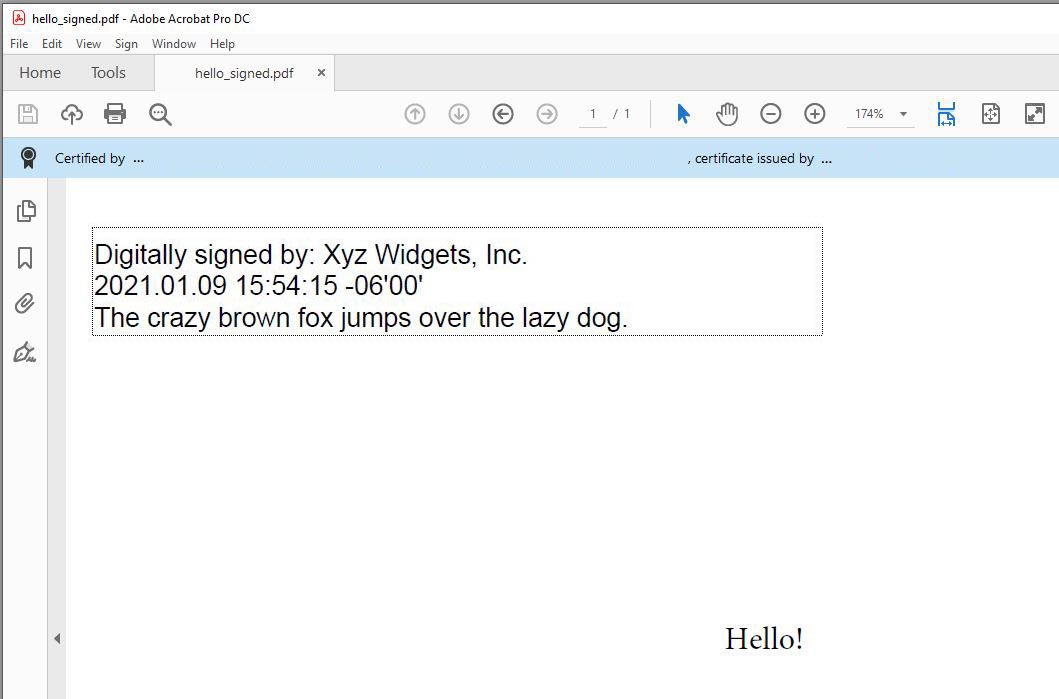
' In this example, the appearance of the digital signature will contain three lines:
' 1) The signing certificate's common name
' 2) The current date/time
' 3) Some arbitrary text.
' The keyword "cert_cn" is replaced with the Certificate's Subject Common Name.
' The keyword "current_dt" is replaced with the current date/time.
' Any number of appearance text lines can be added.
success = json.UpdateString("appearance.text[0]","Digitally signed by: cert_cn")
success = json.UpdateString("appearance.text[1]","current_dt")
success = json.UpdateString("appearance.text[2]","The crazy brown fox jumps over the lazy dog.")
' Load the signing certificate. (Use your own certificate.)
set cert = CreateObject("Chilkat.Cert")
success = cert.LoadPfxFile("qa_data/pfx/myPdfSigningCert.pfx","secret")
If (success = 0) Then
outFile.WriteLine(cert.LastErrorText)
WScript.Quit
End If
' Tell the pdf object to use the certificate for signing.
success = pdf.SetSigningCert(cert)
If (success = 0) Then
outFile.WriteLine(pdf.LastErrorText)
WScript.Quit
End If
success = pdf.SignPdf(json,"qa_output/hello_signed.pdf")
If (success = 0) Then
outFile.WriteLine(pdf.LastErrorText)
WScript.Quit
End If
outFile.WriteLine("The PDF has been successfully cryptographically signed.")
' The appearance of the signature appears in Adobe Acrobat as shown here:
'  outFile.Close