VB.NET Requires Chilkat v11.0.0+
VB.NET
PDF Signature Appearance Width and Height
See more PDF Signatures Examples
This example explains how the width and height of the signature appearance rectangle box is determined.Chilkat VB.NET Downloads
Dim success As Boolean = False
' This example requires the Chilkat API to have been previously unlocked.
' See Global Unlock Sample for sample code.
Dim pdf As New Chilkat.Pdf
' Load a PDF to be signed.
' The "hello.pdf" is available at https://chilkatsoft.com/hello.pdf
success = pdf.LoadFile("qa_data/pdf/hello.pdf")
If (success = False) Then
Debug.WriteLine(pdf.LastErrorText)
Exit Sub
End If
' Options for signing are specified in JSON.
Dim json As New Chilkat.JsonObject
' In most cases, the signingCertificateV2 and signingTime attributes are required.
json.UpdateInt("signingCertificateV2",1)
json.UpdateInt("signingTime",1)
' Put the signature on page 1, top left
json.UpdateInt("page",1)
json.UpdateString("appearance.y","top")
json.UpdateString("appearance.x","left")
' Add some text.
json.UpdateString("appearance.text[0]","Digitally signed by: cert_cn")
json.UpdateString("appearance.text[1]","current_dt")
' Add a built-in SVG graphic to the right.
json.UpdateString("appearance.image","blue-check-mark")
json.UpdateString("appearance.imagePlacement","right")
json.UpdateString("appearance.imageOpacity","100")
' There are 4 ways the width and height of the signature rectangle can be specified.
' 1) The width and height (in points) are both explicitly specified.
' User space coordinates use "points" where 72 points equals 1 inch.
' For example (3 inches wide and 1 inch high)
' The fontScale is automatically chose to fit. In addition, if a graphic (JPG or built-in SVG) is included,
' it is automatically scaled such that the text + graphic fit together in the specified rectangle.
' Note: When both height and width are explicitly specified, the resultant signature appearance rectangle
' will match one of the dimensions, but the other dimension will be equal or smaller. This is because the text
' must be proportionally scaled.
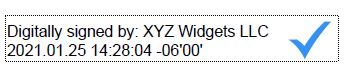
json.UpdateInt("appearance.width",72 * 3)
json.UpdateInt("appearance.height",72)
' The signature would have this appearance. In this case, the height is actually less than 1 inch because
' if Chilkat chose a fontScale to fill the height, the resulting text's width would be too long for the desired width.
'  ' 2) The width is explicitly specified, but we use the keyword "auto" for height.
' In this case, the fontScale is chosen to achieve the desired width,
' and the height will be whatever the result of the chosen font scale.
' In this example, the width is 4 inches, and the height is "auto".
json.UpdateInt("appearance.width",72 * 4)
json.UpdateString("appearance.height","auto")
' The signature would have this appearance:
'
' 2) The width is explicitly specified, but we use the keyword "auto" for height.
' In this case, the fontScale is chosen to achieve the desired width,
' and the height will be whatever the result of the chosen font scale.
' In this example, the width is 4 inches, and the height is "auto".
json.UpdateInt("appearance.width",72 * 4)
json.UpdateString("appearance.height","auto")
' The signature would have this appearance:
'  ' 3) The height is explicitly specified, but we use the keyword "auto" for width.
' In this case, the fontScale is chosen to achieve the desired height,
' and the width will be whatever the result of the chosen font scale.
' In this example, the height is 1 inch (72 points) and the width is "auto".
json.UpdateString("appearance.width","auto")
json.UpdateInt("appearance.height",72)
' The signature would have this appearance.
'
' 3) The height is explicitly specified, but we use the keyword "auto" for width.
' In this case, the fontScale is chosen to achieve the desired height,
' and the width will be whatever the result of the chosen font scale.
' In this example, the height is 1 inch (72 points) and the width is "auto".
json.UpdateString("appearance.width","auto")
json.UpdateInt("appearance.height",72)
' The signature would have this appearance.
'  ' 4) Finally, we don't need to specify width/height at all. Instead, we can choose a fontScale
' and the dimensions of the PDF signature appearance's rectangle will be the result of using the
' specified fontScale.
Dim jAppearance As New Chilkat.JsonObject
json.ObjectOf2("appearance",jAppearance)
jAppearance.Delete("width")
jAppearance.Delete("height")
json.UpdateString("appearance.fontScale","10.0")
' With fontScale = "10.0"
'
' 4) Finally, we don't need to specify width/height at all. Instead, we can choose a fontScale
' and the dimensions of the PDF signature appearance's rectangle will be the result of using the
' specified fontScale.
Dim jAppearance As New Chilkat.JsonObject
json.ObjectOf2("appearance",jAppearance)
jAppearance.Delete("width")
jAppearance.Delete("height")
json.UpdateString("appearance.fontScale","10.0")
' With fontScale = "10.0"
'  ' Load the signing certificate. (Use your own certificate.)
Dim cert As New Chilkat.Cert
success = cert.LoadPfxFile("qa_data/pfx/myPdfSigningCert.pfx","pfx_password")
If (success = False) Then
Debug.WriteLine(cert.LastErrorText)
Exit Sub
End If
' Tell the pdf object to use the certificate for signing.
success = pdf.SetSigningCert(cert)
If (success = False) Then
Debug.WriteLine(pdf.LastErrorText)
Exit Sub
End If
success = pdf.SignPdf(json,"qa_output/hello_signed.pdf")
If (success = False) Then
Debug.WriteLine(pdf.LastErrorText)
Exit Sub
End If
Debug.WriteLine("The PDF has been successfully cryptographically signed.")
' Load the signing certificate. (Use your own certificate.)
Dim cert As New Chilkat.Cert
success = cert.LoadPfxFile("qa_data/pfx/myPdfSigningCert.pfx","pfx_password")
If (success = False) Then
Debug.WriteLine(cert.LastErrorText)
Exit Sub
End If
' Tell the pdf object to use the certificate for signing.
success = pdf.SetSigningCert(cert)
If (success = False) Then
Debug.WriteLine(pdf.LastErrorText)
Exit Sub
End If
success = pdf.SignPdf(json,"qa_output/hello_signed.pdf")
If (success = False) Then
Debug.WriteLine(pdf.LastErrorText)
Exit Sub
End If
Debug.WriteLine("The PDF has been successfully cryptographically signed.")