VB.NET
VB.NET
Auto-Refresh O365 Access Token when Sending Email
See more Office365 Examples
Demonstrates how to automatically recover from an expired access token when sending email from smtp.office365.com using OAuth2 authentication. If the server responds with an error indicating that the access token is expired, then we refresh the access token and retry.Chilkat VB.NET Downloads
Dim success As Boolean = False

' This example requires the Chilkat API to have been previously unlocked.
' See Global Unlock Sample for sample code.

' An Office365 OAuth2 access token must first be obtained prior
' to running this code.

' First get our previously obtained OAuth2 access token.
Dim jsonToken As New Chilkat.JsonObject
success = jsonToken.LoadFile("qa_data/tokens/office365.json")

Dim mailman As New Chilkat.MailMan

mailman.SmtpHost = "smtp.office365.com"
mailman.SmtpPort = 587
mailman.StartTLS = True

' Use your Office365 email address for the SmtpUsername.
mailman.SmtpUsername = "OFFICE365_EMAIL_ADDRESS"
mailman.OAuth2AccessToken = jsonToken.StringOf("access_token")

' Create a new email object
Dim email As New Chilkat.Email

email.Subject = "This is a test"
email.Body = "This is a test"
email.From = "MY_NAME <OFFICE365_EMAIL_ADDRESS>"
success = email.AddTo("John Doe","somebody@example.com")

' Call SendEmail to connect to the SMTP server and send.
' The connection (i.e. session) to the SMTP server remains
' open so that subsequent SendEmail calls may use the
' same connection.
success = mailman.SendEmail(email)
If (success = True) Then
    Debug.WriteLine("Mail Sent!")
    Exit Sub
End If


' If we fall through to here, it means something failed.
' If we failed because of an invalid or expired access token, we should get this SMTP status code and error message:
'    response: 535 5.7.3 Authentication unsuccessful [CH2PR19CA0023.namprd19.prod.outlook.com]
'    status code: 535
If (mailman.LastSmtpStatus <> 535) Then
    Debug.WriteLine(mailman.LastErrorText)
    Exit Sub
End If


' If we get here, it means the SMTP status code equaled 535, which is an authentication failure.
' Let's refresh the access token, and then retry..

Dim oauth2 As New Chilkat.OAuth2

' Update to use your token endpoint.
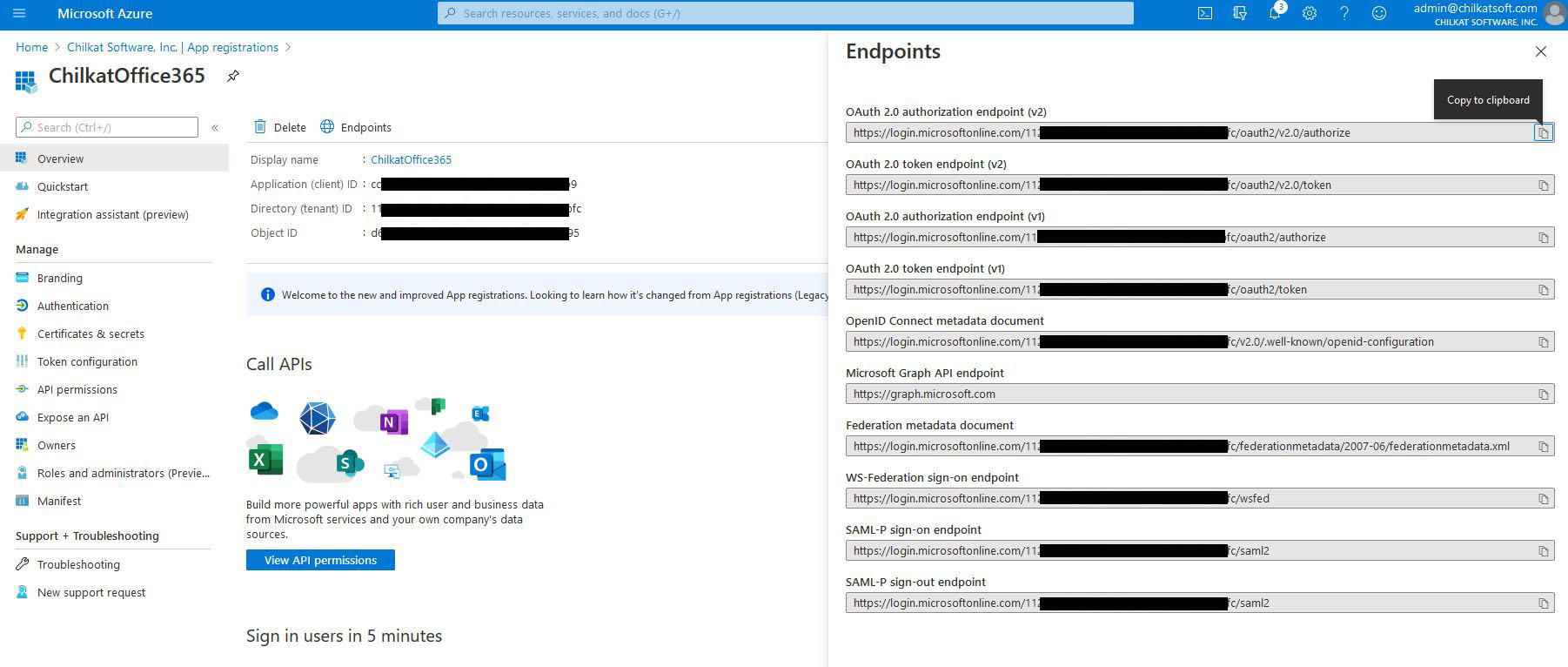
' In the Azure Portal, in "App registrations", go to "Endpoints" (located to the right of the "+ New registration" link.)
'    Find your endpoint for the "OAuth 2.0 token endpoint (v2)"
'    See Office365 OAuth2 Endpoints

oauth2.TokenEndpoint = "https://login.microsoftonline.com/xxxxxxxxxx-71bf-4ebe-a866-738364321bf2/oauth2/v2.0/token"

' Replace these with actual values.
oauth2.ClientId = "CLIENT_ID"
oauth2.ClientSecret = "CLIENT_SECRET"

' Get the "refresh_token"
oauth2.RefreshToken = jsonToken.StringOf("refresh_token")

' Send the HTTP POST to refresh the access token..
success = oauth2.RefreshAccessToken()
If (success <> True) Then
    Debug.WriteLine(oauth2.LastErrorText)
    Exit Sub
End If


Debug.WriteLine("New access token: " & oauth2.AccessToken)
Debug.WriteLine("New refresh token: " & oauth2.RefreshToken)

' Update the JSON with the new tokens.
jsonToken.UpdateString("access_token",oauth2.AccessToken)
jsonToken.UpdateString("refresh_token",oauth2.RefreshToken)

' Save the new JSON access token response to a file.
Dim sbJson As New Chilkat.StringBuilder
jsonToken.EmitCompact = False
jsonToken.EmitSb(sbJson)
sbJson.WriteFile("qa_data/tokens/office365.json","utf-8",False)

Debug.WriteLine("OAuth2 authorization granted!")
Debug.WriteLine("New Access Token = " & oauth2.AccessToken)

' -------------------------------------------------
' Retry the SMTP send using the refreshed access token.

Debug.WriteLine("Retrying the send using the refreshed access token.")

mailman.OAuth2AccessToken = oauth2.AccessToken

success = mailman.SendEmail(email)
If (success = False) Then
    Debug.WriteLine(mailman.LastErrorText)
    Exit Sub
End If


success = mailman.CloseSmtpConnection()
If (success <> True) Then
    Debug.WriteLine("Connection to SMTP server not closed cleanly.")
End If


Debug.WriteLine("Email sent!")