Visual Basic 6.0 Requires Chilkat v11.4.0+
Visual Basic 6.0
AI Modify Existing Image with Text Prompt
See more AI Examples
Uses an AI text prompt and uploaded image data to modify an existing image and receive the modified output.Chilkat Visual Basic 6.0 Downloads
Dim success As Long
success = 0
' This example assumes the Chilkat API to have been previously unlocked.
' See Global Unlock Sample for sample code.
' Load the data from an existing image.
Dim bdImageData As New ChilkatBinData
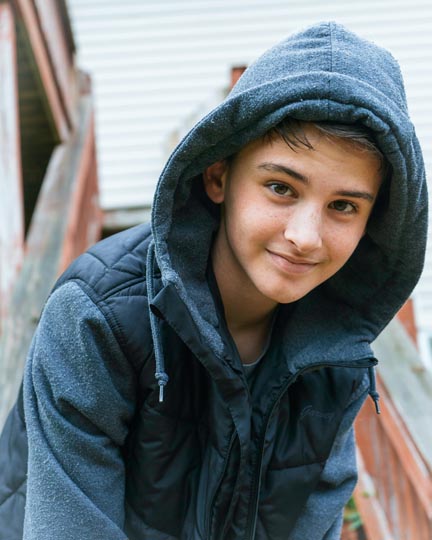
success = bdImageData.LoadFile("qa_data/jpg/kid_blue_coat.jpg")
If (success = 0) Then
Debug.Print bdImageData.LastErrorText
Exit Sub
End If
Dim ai As New ChilkatAi
ai.Provider = "openai"
' Use your provider's API key.
ai.ApiKey = "MY_API_KEY"
' Choose a model.
ai.Model = "gpt-5.6-terra"
Dim askParams As New ChilkatJsonObject
success = askParams.UpdateString("image.output_format","jpeg")
success = ai.SetAskParams(askParams)
success = ai.InputAddImageData(bdImageData,"")
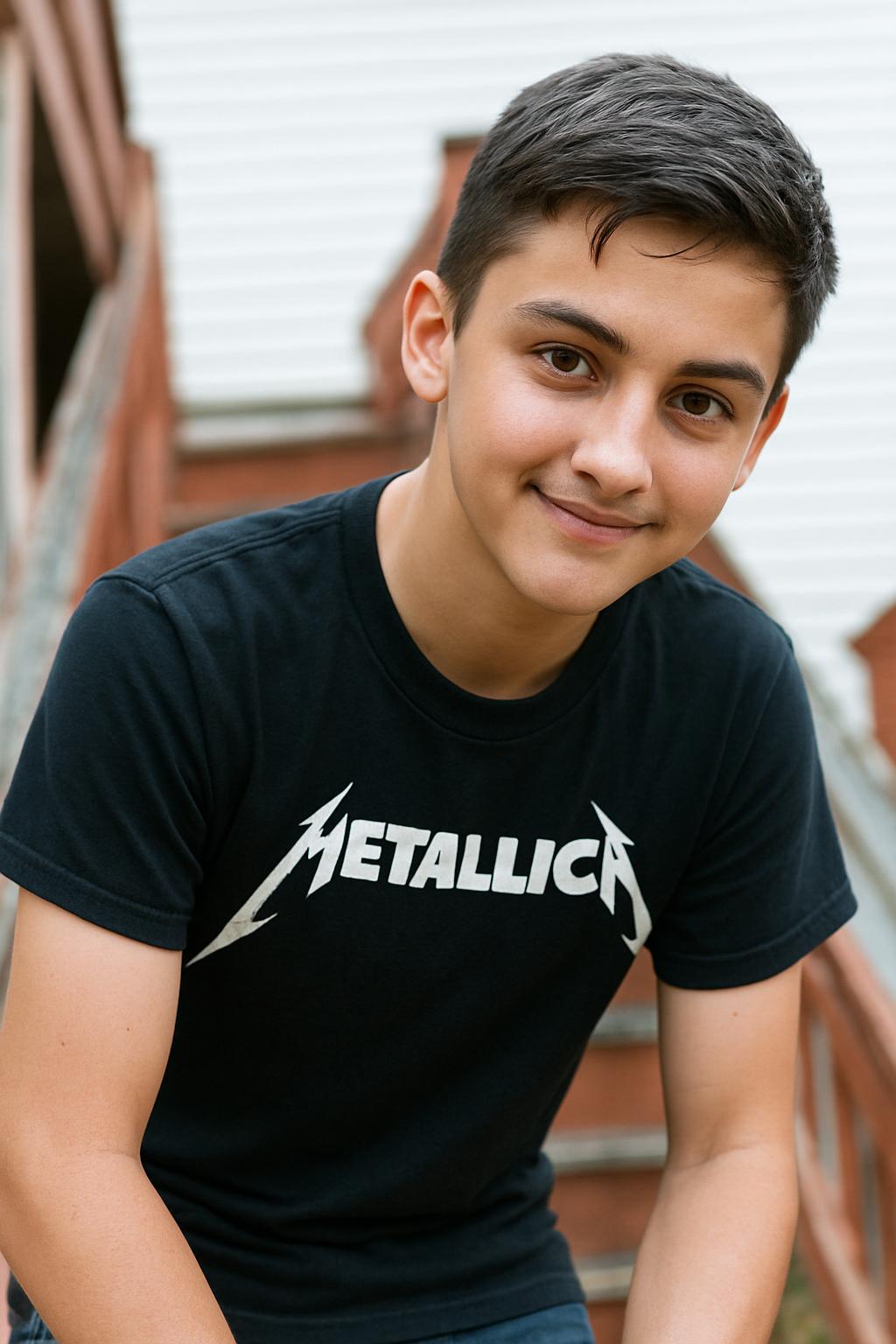
success = ai.InputAddText("Modify the image by replacing the blue coat with a Metallica T-shirt.")
' Give the AI some time (2 minutes).
ai.IdleTimeoutMs = 120000
' Ask the AI for image output.
success = ai.Ask("image")
If (success = 0) Then
Debug.Print ai.LastErrorText
Exit Sub
End If
' Get the image response data.;
success = ai.GetOutputBd(bdImageData)
If (success = 0) Then
Debug.Print ai.LastErrorText
Exit Sub
End If
success = bdImageData.WriteFile("c:/aaworkarea/out.jpg")
Debug.Print "Success."
' -------------------------------
' Sample Input:
' -------------------------------
'  ' -------------------------------
' Sample Output:
' -------------------------------
'
' -------------------------------
' Sample Output:
' -------------------------------
'