Unicode C
Unicode C
Sign a PDF (Simplest Possible Example)
See more PDF Signatures Examples
This example demonstrates how to a sign a PDF using mostly default options in the simplest way possible.Chilkat Unicode C Downloads
#include <C_CkPdfW.h>
#include <C_CkJsonObjectW.h>
#include <C_CkCertW.h>
void ChilkatSample(void)
{
BOOL success;
HCkPdfW pdf;
HCkJsonObjectW json;
HCkCertW cert;
success = FALSE;
// This example requires the Chilkat API to have been previously unlocked.
// See Global Unlock Sample for sample code.
pdf = CkPdfW_Create();
// Load a PDF to be signed.
// The "hello.pdf" is available at https://chilkatsoft.com/hello.pdf
success = CkPdfW_LoadFile(pdf,L"qa_data/pdf/hello.pdf");
if (success == FALSE) {
wprintf(L"%s\n",CkPdfW_lastErrorText(pdf));
CkPdfW_Dispose(pdf);
return;
}
// Options for signing are specified in JSON.
json = CkJsonObjectW_Create();
// In most cases, the signingCertificateV2 and signingTime attributes are required.
CkJsonObjectW_UpdateInt(json,L"signingCertificateV2",1);
CkJsonObjectW_UpdateInt(json,L"signingTime",1);
// Put the signature on page 1, top left
CkJsonObjectW_UpdateInt(json,L"page",1);
CkJsonObjectW_UpdateString(json,L"appearance.y",L"top");
CkJsonObjectW_UpdateString(json,L"appearance.x",L"left");
// Use a font scale of 10.0
CkJsonObjectW_UpdateString(json,L"appearance.fontScale",L"10.0");
// In this example, the appearance of the digital signature will contain three lines:
// 1) The signing certificate's common name
// 2) The current date/time
// 3) Some arbitrary text.
// The keyword "cert_cn" is replaced with the Certificate's Subject Common Name.
// The keyword "current_dt" is replaced with the current date/time.
// Any number of appearance text lines can be added.
CkJsonObjectW_UpdateString(json,L"appearance.text[0]",L"Digitally signed by: cert_cn");
CkJsonObjectW_UpdateString(json,L"appearance.text[1]",L"current_dt");
CkJsonObjectW_UpdateString(json,L"appearance.text[2]",L"The crazy brown fox jumps over the lazy dog.");
// Load the signing certificate. (Use your own certificate.)
cert = CkCertW_Create();
success = CkCertW_LoadPfxFile(cert,L"qa_data/pfx/myPdfSigningCert.pfx",L"secret");
if (success == FALSE) {
wprintf(L"%s\n",CkCertW_lastErrorText(cert));
CkPdfW_Dispose(pdf);
CkJsonObjectW_Dispose(json);
CkCertW_Dispose(cert);
return;
}
// Tell the pdf object to use the certificate for signing.
success = CkPdfW_SetSigningCert(pdf,cert);
if (success == FALSE) {
wprintf(L"%s\n",CkPdfW_lastErrorText(pdf));
CkPdfW_Dispose(pdf);
CkJsonObjectW_Dispose(json);
CkCertW_Dispose(cert);
return;
}
success = CkPdfW_SignPdf(pdf,json,L"qa_output/hello_signed.pdf");
if (success == FALSE) {
wprintf(L"%s\n",CkPdfW_lastErrorText(pdf));
CkPdfW_Dispose(pdf);
CkJsonObjectW_Dispose(json);
CkCertW_Dispose(cert);
return;
}
wprintf(L"The PDF has been successfully cryptographically signed.\n");
// The appearance of the signature appears in Adobe Acrobat as shown here:
// 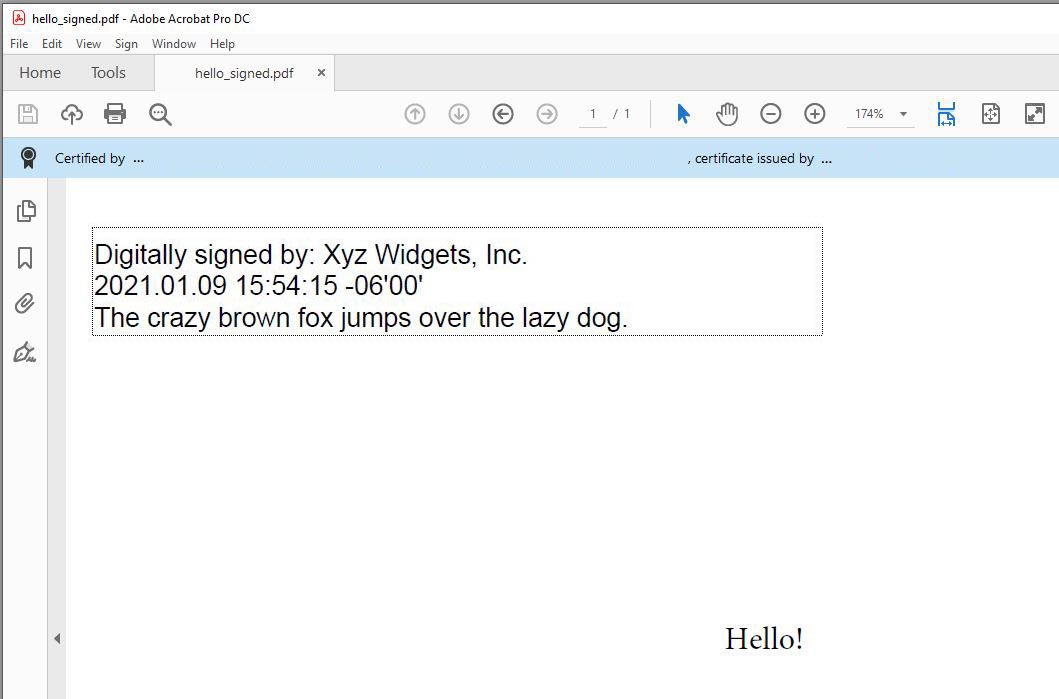 CkPdfW_Dispose(pdf);
CkJsonObjectW_Dispose(json);
CkCertW_Dispose(cert);
}
CkPdfW_Dispose(pdf);
CkJsonObjectW_Dispose(json);
CkCertW_Dispose(cert);
}