Unicode C++
Unicode C++
RSA Decrypt using Private Key on Smartcard or USB Token via Apple Keychain
See more Apple Keychain Examples
RSA decryption using a certificate's private key located on a hardware token or smartcard via the Apple Keychain.Note: This example requires Chilkat v10.1.2 or greater.
Chilkat Unicode C++ Downloads
#include <CkBinDataW.h>
#include <CkCertW.h>
#include <CkRsaW.h>
void ChilkatSample(void)
{
bool success = false;
// Beforehand, we generated a 256-bit AES key, RSA encrypted, and saved to a file as in this example:
// Generate a Random 256-bit AES Key and RSA Encrypt
// The RSA public key used to encrypt in the above example was obtained from the Apple Keychain
// like this:
// Export a Public Key from USB Token or Smartcard using the Apple Keychain
// This example will load the encrypted data and will RSA decrypt using the
// private key of a certificate on a USB token (or smart card) via the Keychain.
// You can list the Keychain certificates on hardware tokens using the following example:
// Apple Keychain - List Certs on Smartcards and USB Tokens
// Get the RSA encrypted data to be decrypted.
CkBinDataW bd;
// In all Chilkat methods expecting a path, you can pass either absolute or relative paths.
success = bd.LoadFile(L"rsaEncrypted/myAes.key");
if (success == false) {
wprintf(L"Failed to load the encrypted AES key.\n");
return;
}
// Load the certificate having the private key from the Apple Keychain
// On MacOS and iOS, the LoadByCommonName function will search the Apple Keychain for the matching certificate.
CkCertW cert;
// To potentially prevent the PIN dialog from being displayed,
// we'll need to provide the USB token (or smart card) PIN
// Note: It might not be possible to prevent the PIN dialog from being displayed
//
cert.put_SmartCardPin(L"123456");
success = cert.LoadByCommonName(L"Test 2048 bit RSA");
if (success == false) {
wprintf(L"%s\n",cert.lastErrorText());
return;
}
CkRsaW rsa;
// Specify we wish to use the certificate's private key for decryption.
success = rsa.SetX509Cert(cert,true);
if (success == false) {
wprintf(L"%s\n",rsa.lastErrorText());
return;
}
// RSA Decrypt
rsa.put_VerboseLogging(true);
success = rsa.DecryptBd(bd,true);
if (success == false) {
wprintf(L"%s\n",rsa.lastErrorText());
return;
}
// The contents of bd are now decrypted.
wprintf(L"Num bytes after decryption: %d\n",bd.get_NumBytes());
// Some additional notes:
//
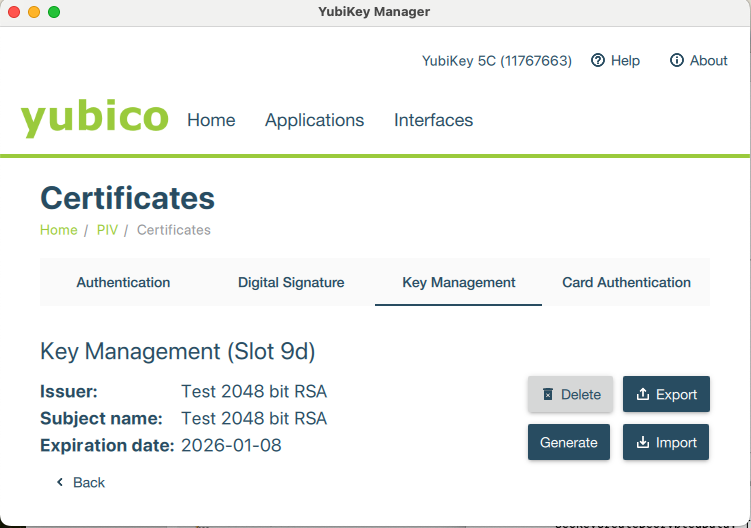
// If using a Yubikey token, the certificate must be installed in the Key Management slot.
// The Digital Signature slot is for RSA keys to be used for signing,
// and the Key Management slot is for RSA keys to be used for decrypting.
//  // If you try to use the RSA key from the Digital Signature slot, you'll get an error such as this:
// The operation couldn't be completed.
// (OSStatus error -50 - algid:encrypt:RSA:PKCS1: algorithm not supported by the key
// <SecKeyRef:('com.apple.pivtoken:AF7172EB60DDCBF1D28459AE24398E11') 0x600001ecca90>)
}
// If you try to use the RSA key from the Digital Signature slot, you'll get an error such as this:
// The operation couldn't be completed.
// (OSStatus error -50 - algid:encrypt:RSA:PKCS1: algorithm not supported by the key
// <SecKeyRef:('com.apple.pivtoken:AF7172EB60DDCBF1D28459AE24398E11') 0x600001ecca90>)
}