Tcl
Tcl
Test HotMail POP3 (pop3.live.com or pop-mail.outlook.com)
See more POP3 Examples
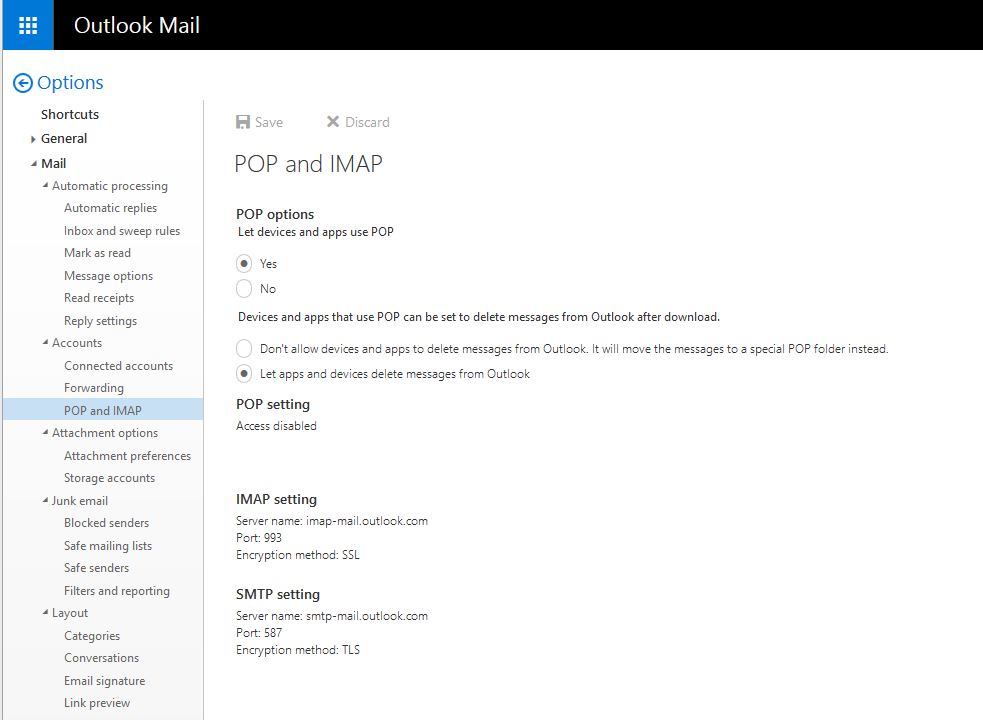
Demonstrates connecting and authenticating to pop3.live.com. Make sure to enable POP3 access, as shown here:
Chilkat Tcl Downloads
load ./chilkat.dll

set success 0

# This example requires the Chilkat API to have been previously unlocked.
# See Global Unlock Sample for sample code.

set mailman [new_CkMailMan]

# Connection settings for pop3.live.com (or pop-mail.outlook.com, both should work)
CkMailMan_put_MailHost $mailman "pop-mail.outlook.com"
CkMailMan_put_MailHost $mailman "pop3.live.com"

CkMailMan_put_PopUsername $mailman "my_account@live.com"
CkMailMan_put_PopPassword $mailman "my_live.com_password"
CkMailMan_put_MailPort $mailman 995
CkMailMan_put_PopSsl $mailman 1

# Make the TLS connection to the POP3 server.
set success [CkMailMan_Pop3Connect $mailman]
if {$success != 1} then {
    puts [CkMailMan_lastErrorText $mailman]
    delete_CkMailMan $mailman
    exit
}

# Authenticate..
set success [CkMailMan_Pop3Authenticate $mailman]
if {$success != 1} then {
    puts [CkMailMan_lastErrorText $mailman]
    delete_CkMailMan $mailman
    exit
}

# Find out how many emails are on the server..
set numEmails [CkMailMan_CheckMail $mailman]
if {$numEmails < 0} then {
    puts [CkMailMan_lastErrorText $mailman]
    delete_CkMailMan $mailman
    exit
}

# Examine the POP3 session log:
puts [CkMailMan_pop3SessionLog $mailman]

# End the POP3 session and close the connection to the POP3 server.
set success [CkMailMan_Pop3EndSession $mailman]
if {$success != 1} then {
    puts [CkMailMan_lastErrorText $mailman]
    delete_CkMailMan $mailman
    exit
}

puts "-- Finished."

# The output of this program:

# 	**** Connected to pop3.live.com:995
# 	< +OK DUB006-POP206 POP3 server ready
# 	> USER chilkat@live.com
# 	< +OK password required
# 	> PASS ****
# 	< +OK User successfully authenticated. [AuthResult=0 Proxy=CY1PR17MB0630.namprd17.prod.outlook.com:1995:SSL]
# 	> STAT
# 	< +OK 46 3980488
#
# 	-- Finished.
#

delete_CkMailMan $mailman