Ruby
Ruby
PDF Signatures with Built-in SVG Graphics
See more PDF Signatures Examples
This example demonstrates the built-in SVG graphics that can be applied to the appearance when signing a PDF.Note: This example requires Chilkat v9.5.0.85 or greater.
Chilkat Ruby Downloads
require 'chilkat'
success = false
# This example requires the Chilkat API to have been previously unlocked.
# See Global Unlock Sample for sample code.
pdf = Chilkat::CkPdf.new()
# Load a PDF to be signed.
# The "hello.pdf" is available at https://chilkatsoft.com/hello.pdf
success = pdf.LoadFile("qa_data/pdf/hello.pdf")
if (success == false)
print pdf.lastErrorText() + "\n";
exit
end
# Options for signing are specified in JSON.
json = Chilkat::CkJsonObject.new()
# In most cases, the signingCertificateV2 and signingTime attributes are required.
json.UpdateInt("signingCertificateV2",1)
json.UpdateInt("signingTime",1)
# Specify the location/position, scale, and content of the signature's appearance.
json.UpdateInt("page",1)
json.UpdateString("appearance.y","top")
json.UpdateString("appearance.x","left")
json.UpdateString("appearance.fontScale","10.0")
json.UpdateString("appearance.text[0]","Digitally signed by: cert_cn")
json.UpdateString("appearance.text[1]","current_dt")
json.UpdateString("appearance.text[2]","The crazy brown fox jumps over the lazy dog.")
# In addition to the above, this example adds a built-in SVG graphic to the appearance.
# The built-in SVG graphic is specified by a name, such as "green-check-grey-circle".
# The full list of graphic names and images are shown below.
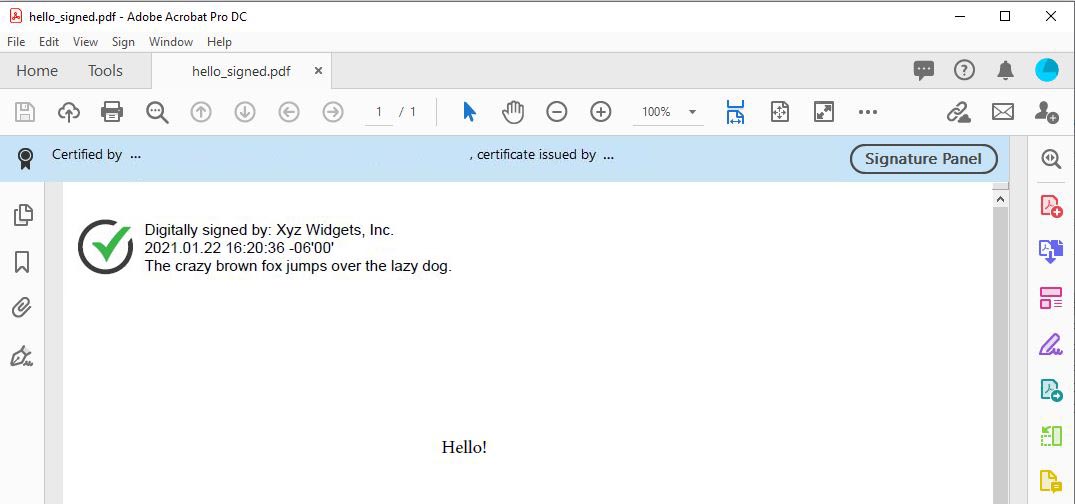
json.UpdateString("appearance.image","green-check-grey-circle")
# The graphic can be placed "left", "center", or "right".
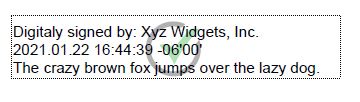
# If "center", then the graphic is displayed behind the text.
json.UpdateString("appearance.imagePlacement","left")
# The graphic's opacity can range from 1 to 100.
# Centered graphics look best with less opacity (50 or less).
# In this example, we'll keep the opacity at 100.
json.UpdateString("appearance.imageOpacity","100")
# Here's an example of the signature's appearance if we centered the SVG graphic with an opacity of 40%
#  # Load the signing certificate. (Use your own certificate.)
cert = Chilkat::CkCert.new()
success = cert.LoadPfxFile("qa_data/pfx/myPdfSigningCert.pfx","secret")
if (success == false)
print cert.lastErrorText() + "\n";
exit
end
# Tell the pdf object to use the certificate for signing.
success = pdf.SetSigningCert(cert)
if (success == false)
print pdf.lastErrorText() + "\n";
exit
end
success = pdf.SignPdf(json,"qa_output/hello_signed.pdf")
if (success == false)
print pdf.lastErrorText() + "\n";
exit
end
print "The PDF has been successfully cryptographically signed." + "\n";
# The appearance of the signature appears in Adobe Acrobat as shown here:
#
# Load the signing certificate. (Use your own certificate.)
cert = Chilkat::CkCert.new()
success = cert.LoadPfxFile("qa_data/pfx/myPdfSigningCert.pfx","secret")
if (success == false)
print cert.lastErrorText() + "\n";
exit
end
# Tell the pdf object to use the certificate for signing.
success = pdf.SetSigningCert(cert)
if (success == false)
print pdf.lastErrorText() + "\n";
exit
end
success = pdf.SignPdf(json,"qa_output/hello_signed.pdf")
if (success == false)
print pdf.lastErrorText() + "\n";
exit
end
print "The PDF has been successfully cryptographically signed." + "\n";
# The appearance of the signature appears in Adobe Acrobat as shown here:
#  # The SVG icon graphics are embedded within the Chilkat library,
# and were graciously provided by uxwing - Free SVG Icons
#
# The uxwing licensing terms are reproduced here and can be verified at uxwing licensing
# Icons from uxwing.com are free (see https://uxwing.com/license/)
# - All icons on UXWing free to download, and use personal, commercial projects.
# - Attribution and Credit is NOT required, however, any credit will be much appreciated.
# - There is no limit to the number of times you can use.
# - You may modify the resources according to your requirements.
# The set of SVG names and the corresponding graphics are shown below.
#
# For example, if we specify "green-check-green-circle"
json.UpdateString("appearance.image","green-check-green-circle")
# We get:
#
# The SVG icon graphics are embedded within the Chilkat library,
# and were graciously provided by uxwing - Free SVG Icons
#
# The uxwing licensing terms are reproduced here and can be verified at uxwing licensing
# Icons from uxwing.com are free (see https://uxwing.com/license/)
# - All icons on UXWing free to download, and use personal, commercial projects.
# - Attribution and Credit is NOT required, however, any credit will be much appreciated.
# - There is no limit to the number of times you can use.
# - You may modify the resources according to your requirements.
# The set of SVG names and the corresponding graphics are shown below.
#
# For example, if we specify "green-check-green-circle"
json.UpdateString("appearance.image","green-check-green-circle")
# We get:
#  # "application-approved"
#
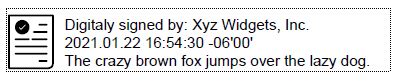
# "application-approved"
#  # "application-rejected"
#
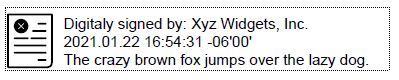
# "application-rejected"
#  # "document-accepted"
#
# "document-accepted"
#  # "approved"
#
# "approved"
#  # "blue-check-mark"
#
# "blue-check-mark"
#  # "green-check-mark"
#
# "green-check-mark"
#  # "green-check-grey-circle"
#
# "green-check-grey-circle"
#  # "red-x-red-circle"
#
# "red-x-red-circle"
#  # "rejected"
#
# "rejected"
#  # "result-failure"
#
# "result-failure"
# 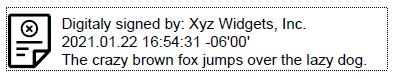 # "result-pass"
#
# "result-pass"
#  # "signature"
#
# "signature"
#  # "document-check"
#
# "document-check"
#  # "document-x"
#
# "document-x"
#  # "red-x-grey-circle"
#
# "red-x-grey-circle"
# 