Ruby
Ruby
PDF Sign Under Existing Signature
See more PDF Signatures Examples
This example explains how sign a previously-signed PDF and place the signature appearance below the existing signature.Note: This example requires Chilkat v9.5.0.85 or greater.
Chilkat Ruby Downloads
require 'chilkat'
success = false
# This example requires the Chilkat API to have been previously unlocked.
# See Global Unlock Sample for sample code.
pdf = Chilkat::CkPdf.new()
# Load a PDF to be signed.
success = pdf.LoadFile("qa_data/pdf/sign_testing_4/hello_signed.pdf")
if (success == false)
print pdf.lastErrorText() + "\n";
exit
end
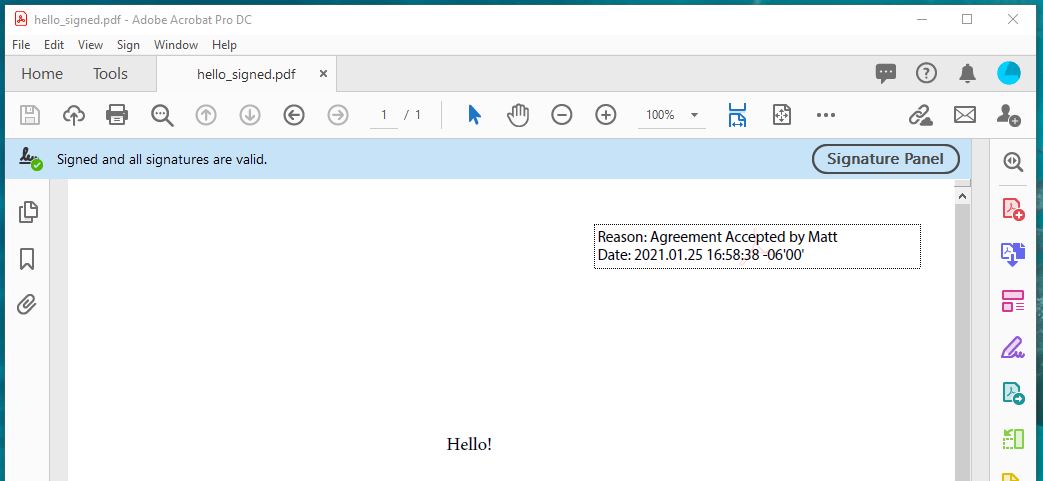
# The PDF we'll be signing already has a signature added in Adobe Acrobat DC.
# It looks like this:
# (Notice the Adobe background logo, which is commonly what you'll see when a signature
# is created by Adobe Acrobat. Chilkat (obviously) does not create signatures using the Adobe
# logo because it would be a copyright violation.)
#  # Options for signing are specified in JSON.
json = Chilkat::CkJsonObject.new()
# In most cases, the signingCertificateV2 and signingTime attributes are required.
json.UpdateInt("signingCertificateV2",1)
json.UpdateInt("signingTime",1)
# To put our new signature underneath the existing signature, we have to specify the page
# where the existing signature is found, and then we can specify "under" for the "appearance.y"
json.UpdateInt("page",1)
json.UpdateString("appearance.y","under")
json.UpdateString("appearance.fontScale","10.0")
json.UpdateString("appearance.text[0]","Reason: Agreement Accepted by John")
json.UpdateString("appearance.text[1]","Date: current_dt")
# Load the signing certificate. (Use your own certificate.)
cert = Chilkat::CkCert.new()
success = cert.LoadPfxFile("qa_data/pfx/myPdfSigningCert.pfx","secret")
if (success == false)
print cert.lastErrorText() + "\n";
exit
end
# Tell the pdf object to use the certificate for signing.
success = pdf.SetSigningCert(cert)
if (success == false)
print pdf.lastErrorText() + "\n";
exit
end
# Note: When adding an additional signature to a PDF, the existing signatures
# are validated, and this includes validating the certificates previously used to
# create the existing signatures. (A signature typically embeds the signing certs.)
# In some cases, the certificates and/or certs in the chain of authentication for
# existing signatures are not present, and are not available on the current system.
# In this case, you can skip the validation by setting this keyword in UncommonOptions:
pdf.put_UncommonOptions("NO_VERIFY_CERT_SIGNATURES")
success = pdf.SignPdf(json,"qa_output/hello_signed.pdf")
if (success == false)
print pdf.lastErrorText() + "\n";
exit
end
print "The PDF has been successfully cryptographically signed." + "\n";
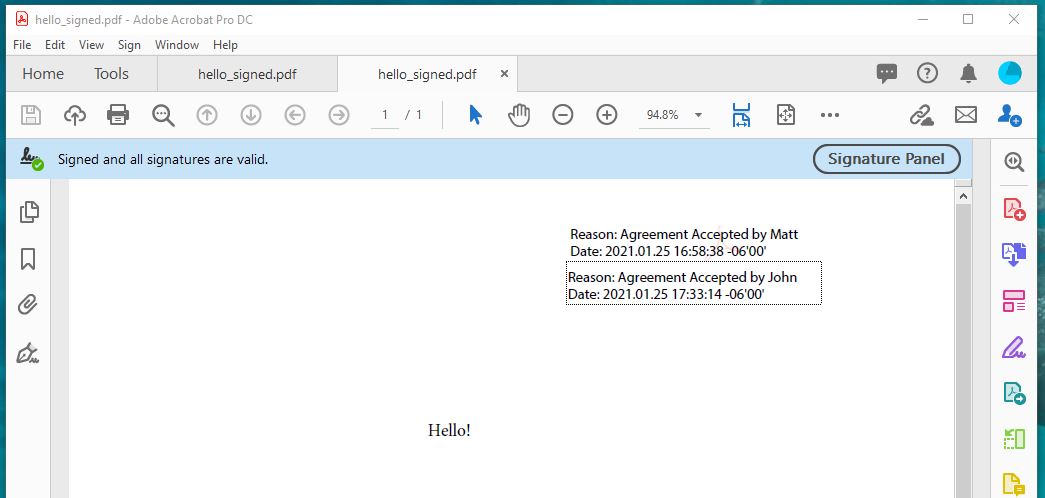
# Here's a screenshot of the 2nd signature positioned under the 1st in Adobe Acrobat:
#
# Options for signing are specified in JSON.
json = Chilkat::CkJsonObject.new()
# In most cases, the signingCertificateV2 and signingTime attributes are required.
json.UpdateInt("signingCertificateV2",1)
json.UpdateInt("signingTime",1)
# To put our new signature underneath the existing signature, we have to specify the page
# where the existing signature is found, and then we can specify "under" for the "appearance.y"
json.UpdateInt("page",1)
json.UpdateString("appearance.y","under")
json.UpdateString("appearance.fontScale","10.0")
json.UpdateString("appearance.text[0]","Reason: Agreement Accepted by John")
json.UpdateString("appearance.text[1]","Date: current_dt")
# Load the signing certificate. (Use your own certificate.)
cert = Chilkat::CkCert.new()
success = cert.LoadPfxFile("qa_data/pfx/myPdfSigningCert.pfx","secret")
if (success == false)
print cert.lastErrorText() + "\n";
exit
end
# Tell the pdf object to use the certificate for signing.
success = pdf.SetSigningCert(cert)
if (success == false)
print pdf.lastErrorText() + "\n";
exit
end
# Note: When adding an additional signature to a PDF, the existing signatures
# are validated, and this includes validating the certificates previously used to
# create the existing signatures. (A signature typically embeds the signing certs.)
# In some cases, the certificates and/or certs in the chain of authentication for
# existing signatures are not present, and are not available on the current system.
# In this case, you can skip the validation by setting this keyword in UncommonOptions:
pdf.put_UncommonOptions("NO_VERIFY_CERT_SIGNATURES")
success = pdf.SignPdf(json,"qa_output/hello_signed.pdf")
if (success == false)
print pdf.lastErrorText() + "\n";
exit
end
print "The PDF has been successfully cryptographically signed." + "\n";
# Here's a screenshot of the 2nd signature positioned under the 1st in Adobe Acrobat:
#