React Native
React Native
Sign PDF in the Cloud using AWS KMS
See more Signing in the Cloud Examples
Demonstrates how to sign a PDF using the AWS Key Management Service. The signing of the hash happens in the Cloud on AWS KMS. Everything else involving the updating the PDF to add the signature happens locally within Chilkat.Chilkat React Native Downloads
import { Cert, JsonObject, Pdf } from '@chilkat/react-native'
async function chilkatExample() {
// This example requires the Chilkat API to have been previously unlocked.
// See Global Unlock Sample for sample code.
const pdf = new Pdf();
// Load a PDF to be signed.
try {
pdf.loadFile('qa_data/pdf/helloWorld.pdf');
} catch {
console.log(pdf.lastErrorText);
return;
}
// Options for signing are specified in JSON.
const json = new JsonObject();
// Optionally create an LTV-enabled signature
json.updateBool('ltvOcsp', true);
// Define the appearance of the signature.
json.updateInt('page', 1);
json.updateString('appearance.y', 'top');
json.updateString('appearance.x', 'left');
json.updateString('appearance.fontScale', '10.0');
json.updateString('appearance.text[0]', 'Digitally signed by: cert_cn');
json.updateString('appearance.text[1]', 'current_dt');
json.updateString('appearance.text[2]', 'This is an LTV-enabled signature.');
// Load the certificate used for signing. The certificate's private key is stored in AWS KMS
// However, we still need the certificate locally (without private key).
const cert = new Cert();
try {
cert.loadFromFile('qa_data/certs/myCert.cer');
} catch {
console.log(cert.lastErrorText);
return;
}
// Here's a screenshot of our private key AWS KMS:
// 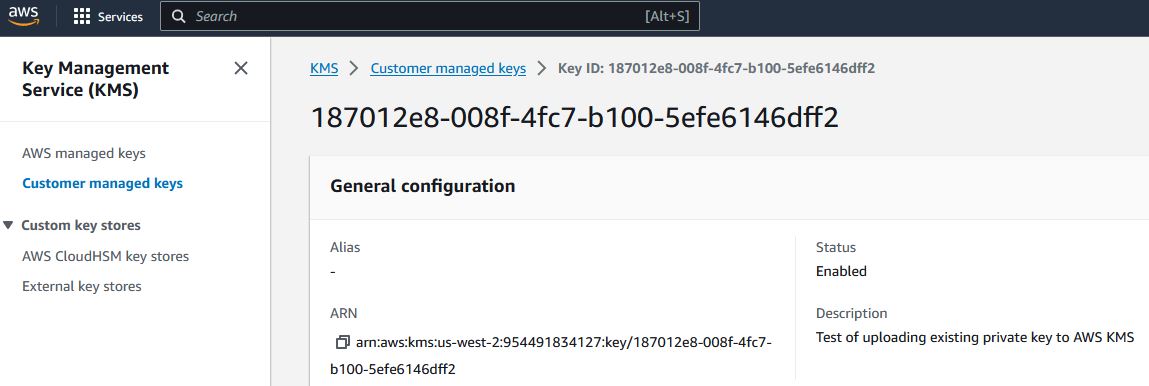 // To sign using AWS KMS,
// add the following lines of code to specify your AWS authentication credentials,
// and the ID of the KMS private key.
const jsonAwsKms = new JsonObject();
// Set the "service" equal to "aws_kms" to tell Chilkat to use AWS KMS for signing.
jsonAwsKms.updateString('service', 'aws_kms');
jsonAwsKms.updateString('access_key', 'ACCESS_KEY');
jsonAwsKms.updateString('secret_key', 'SECRET_KEY');
// Make sure to specify the correct region for your case.
jsonAwsKms.updateString('region', 'us-west-2');
// In the above screenshot, our key ID is "187012e8-008f-4fc7-b100-5efe6146dff2". You will use your key ID.
jsonAwsKms.updateString('key_id', '187012e8-008f-4fc7-b100-5efe6146dff2');
await cert.setCloudSignerAsync(jsonAwsKms);
// Tell the pdf object to use the certificate for signing (and for AWS KMS to do the actual signing of the hash).
try {
pdf.setSigningCert(cert);
} catch {
console.log(pdf.lastErrorText);
return;
}
// Chilkat will build the signed PDF locally, but will (internally) use AWS KMS
// to do the RSA (or EC) sign hash operation.
try {
await pdf.signPdfAsync(json, 'qa_output/hello_ltv_signed.pdf');
} catch {
console.log(pdf.lastErrorText);
return;
}
console.log('PDF Cloud Signing using AWS KMS Successful.');
}
// To sign using AWS KMS,
// add the following lines of code to specify your AWS authentication credentials,
// and the ID of the KMS private key.
const jsonAwsKms = new JsonObject();
// Set the "service" equal to "aws_kms" to tell Chilkat to use AWS KMS for signing.
jsonAwsKms.updateString('service', 'aws_kms');
jsonAwsKms.updateString('access_key', 'ACCESS_KEY');
jsonAwsKms.updateString('secret_key', 'SECRET_KEY');
// Make sure to specify the correct region for your case.
jsonAwsKms.updateString('region', 'us-west-2');
// In the above screenshot, our key ID is "187012e8-008f-4fc7-b100-5efe6146dff2". You will use your key ID.
jsonAwsKms.updateString('key_id', '187012e8-008f-4fc7-b100-5efe6146dff2');
await cert.setCloudSignerAsync(jsonAwsKms);
// Tell the pdf object to use the certificate for signing (and for AWS KMS to do the actual signing of the hash).
try {
pdf.setSigningCert(cert);
} catch {
console.log(pdf.lastErrorText);
return;
}
// Chilkat will build the signed PDF locally, but will (internally) use AWS KMS
// to do the RSA (or EC) sign hash operation.
try {
await pdf.signPdfAsync(json, 'qa_output/hello_ltv_signed.pdf');
} catch {
console.log(pdf.lastErrorText);
return;
}
console.log('PDF Cloud Signing using AWS KMS Successful.');
}