PowerShell
PowerShell
LinkedIn OAuth2 Access Token
See more OAuth2 Examples
Demonstrates how to get a LinkedIn OAuth2 access token from a desktop application or script.Note: This example requires Chilkat v10.1.2 or later.
Chilkat PowerShell Downloads
Add-Type -Path "C:\chilkat\ChilkatDotNet47-x64\ChilkatDotNet47.dll"

$success = $false

# To further clarify, see OAuth 2.0 Authorization Flow

$oauth2 = New-Object Chilkat.OAuth2

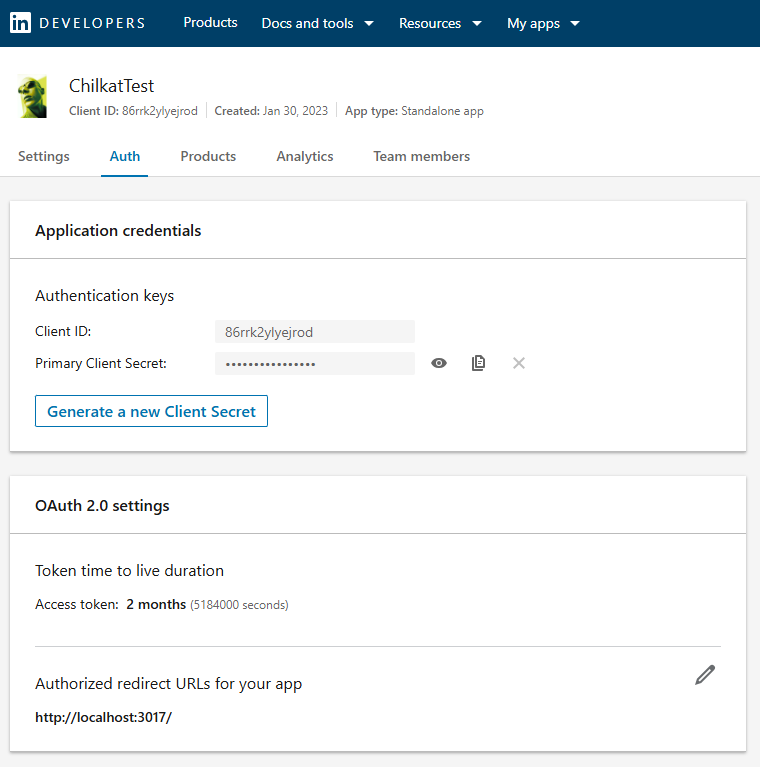
# The port should match the Authorized Redirect URL in your LinkedIn app,
# which would look like "http://localhost:3017/"
# See a screenshot below...
$oauth2.ListenPort = 3017

$oauth2.AuthorizationEndpoint = "https://www.linkedin.com/oauth/v2/authorization"
$oauth2.TokenEndpoint = "https://www.linkedin.com/oauth/v2/accessToken"

# Replace these with actual values.
$oauth2.ClientId = "CLIENT_ID"
$oauth2.ClientSecret = "CLIENT_SECRET"
$oauth2.Scope = "w_member_social"

# Begin the OAuth2 three-legged flow.  This returns a URL that should be loaded in a browser.
$url = $oauth2.StartAuth()
if ($oauth2.LastMethodSuccess -ne $true) {
    $($oauth2.LastErrorText)
    exit
}

# Launch the default browser on the system and navigate to the url.
# The LaunchBrowser method was added in Chilkat v10.1.2.
$success = $oauth2.LaunchBrowser($url)
if ($success -eq $false) {
    $($oauth2.LastErrorText)
    exit
}

# Wait for the interactive user to grant permission in the interactive browser session.
# We'll wait for a max of 90 seconds.
$numMsWaited = 0
while (($numMsWaited -lt 90000) -and ($oauth2.AuthFlowState -lt 3)) {
    $oauth2.SleepMs(100)
    $numMsWaited = $numMsWaited + 100
}

# If there was no response from the browser within 90 seconds, then
# the AuthFlowState will be equal to 1 or 2.
# 1: Waiting for Redirect. The OAuth2 background thread is waiting to receive the redirect HTTP request from the browser.
# 2: Waiting for Final Response. The OAuth2 background thread is waiting for the final access token response.
# In that case, cancel the background task started in the call to StartAuth.
if ($oauth2.AuthFlowState -lt 3) {
    $oauth2.Cancel()
    $("No response from the browser!")
    exit
}

# Check the AuthFlowState to see if authorization was granted, denied, or if some error occurred
# The possible AuthFlowState values are:
# 3: Completed with Success. The OAuth2 flow has completed, the background thread exited, and the successful JSON response is available in AccessTokenResponse property.
# 4: Completed with Access Denied. The OAuth2 flow has completed, the background thread exited, and the error JSON is available in AccessTokenResponse property.
# 5: Failed Prior to Completion. The OAuth2 flow failed to complete, the background thread exited, and the error information is available in the FailureInfo property.
if ($oauth2.AuthFlowState -eq 5) {
    $("OAuth2 failed to complete.")
    $($oauth2.FailureInfo)
    exit
}

if ($oauth2.AuthFlowState -eq 4) {
    $("OAuth2 authorization was denied.")
    $($oauth2.AccessTokenResponse)
    exit
}

if ($oauth2.AuthFlowState -ne 3) {
    $("Unexpected AuthFlowState:" + $oauth2.AuthFlowState)
    exit
}

$("OAuth2 authorization granted!")
$("Access Token = " + $oauth2.AccessToken)

$("Full JSON Response = " + $oauth2.AccessTokenResponse)

# Example JSON Response:
#
# {
#   "access_token": "AQU7C5zU8n....ggWyUA",
#   "expires_in": 5183999,
#   "scope": "w_member_social"
# }

# Save the full JSON access token response to a file.
$sbJson = New-Object Chilkat.StringBuilder
$sbJson.Append($oauth2.AccessTokenResponse)
$sbJson.WriteFile("qa_data/tokens/_linkedIn.json","utf-8",$false)

# Here is an example showing how to define your App in the LinkedIn developers console:
#