PowerShell
PowerShell
AWS Secrets Manager - Create or Update a JSON Secret
See more Secrets Examples
Demonstrates how to create or update a JSON secret stored in the AWS Secrets Manager.Note: This example requires Chilkat v10.1.0 or later.
Chilkat PowerShell Downloads
Add-Type -Path "C:\chilkat\ChilkatDotNet47-x64\ChilkatDotNet47.dll"

$success = $false

# This example requires the Chilkat API to have been previously unlocked.
# See Global Unlock Sample for sample code.

# The bootstrap secret will contain the following information:

# AWS Region
# AWS Access Key
# AWS Secret Key

# See following examples for setting up a bootstrap secret in memory,
# or in the local manager (Windows Credentials Manager or Apple Keychain)
# Setup Bootstrap Secret in Local Manager
# Setup Bootstrap Secret in Memory
$bootstrap = New-Object Chilkat.Secrets

# Set the location of the bootstrap secret.
# Can be "local_manager" or "memory", depending on how you setup the bootstrap secret.
# ---------------------------------------------------------------------------------------------
# If your operating system is NOT Windows or MacOS/iOS, then change "local_manager" to "memory"
# You can also, if desired, use "memory" on Windows and MacOS/iOS if your bootstrap secret was previously setup in memory.
# ---------------------------------------------------------------------------------------------
$bootstrap.Location = "local_manager"

# Specify the bootstrap secret to be used.
$bsId = New-Object Chilkat.JsonObject
$bsId.UpdateString("appName","AWS")
$bsId.UpdateString("service","Example")
$bsId.UpdateString("username","Joe")

# ----------------------------------------------------
$secrets = New-Object Chilkat.Secrets

# Setup for the AWS Secrets Manager
$secrets.Location = "aws_secrets_manager"
$success = $secrets.SetBootstrapSecret($bsId,$bootstrap)
if ($success -eq $false) {
    $($secrets.LastErrorText)
    exit
}

# ----
# Specify the name of the secret.
# service and username are required.
# appName and domain are optional.
# Note: The values are arbitrary and can be anything you want.
$json = New-Object Chilkat.JsonObject
$json.UpdateString("appName","MyApp")
$json.UpdateString("service","OAuth2")
$json.UpdateString("domain","onedrive")
$json.UpdateString("username","matt")

# Get the secret to be stored.
$jsonSecret = New-Object Chilkat.JsonObject
$success = $jsonSecret.LoadFile("qa_data/tokens/oneDrive.json")
if ($success -eq $false) {
    $($jsonSecret.LastErrorText)
    exit
}

# Create or update the secret.
$success = $secrets.UpdateSecretJson($json,$jsonSecret)
if ($success -eq $false) {
    $($secrets.LastErrorText)
    exit
}

$("Success.")

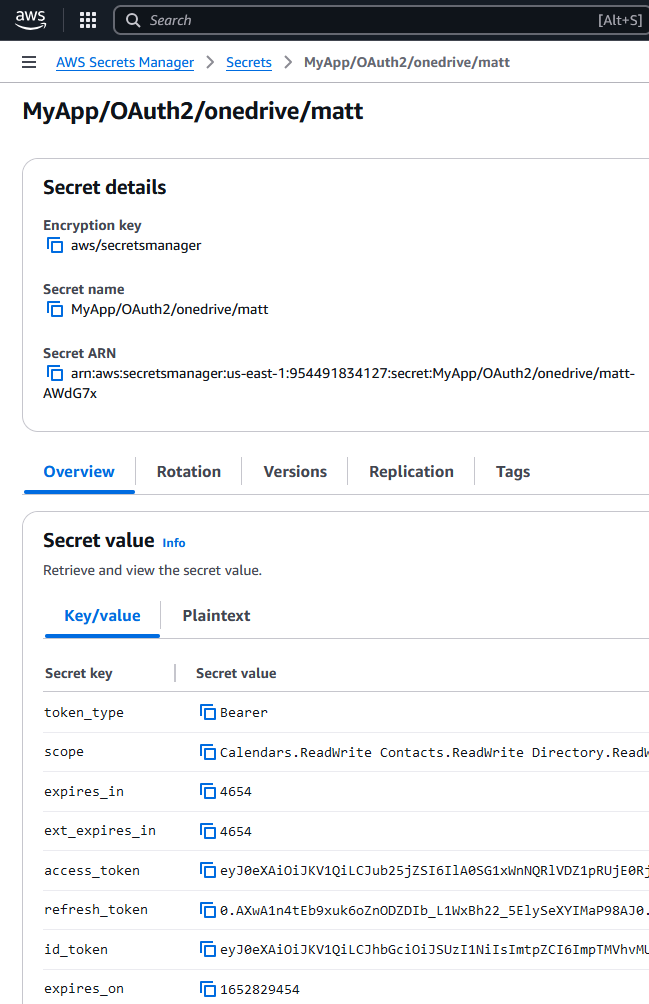
# Here you can see the secret that was created:

#