PHP Extension
PHP Extension
PDF Signature Page Location
See more PDF Signatures Examples
This example demonstrates how to specify the location of a PDF signature on a page.Note: This example requires Chilkat v9.5.0.85 or greater.
Chilkat PHP Extension Downloads
<?php
include("chilkat.php");
$success = false;
// This example requires the Chilkat API to have been previously unlocked.
// See Global Unlock Sample for sample code.
$pdf = new CkPdf();
// Load a PDF to be signed.
// The "hello.pdf" is available at https://chilkatsoft.com/hello.pdf
$success = $pdf->LoadFile('qa_data/pdf/hello.pdf');
if ($success == false) {
print $pdf->lastErrorText() . "\n";
exit;
}
// Options for signing are specified in JSON.
$json = new CkJsonObject();
// In most cases, the signingCertificateV2 and signingTime attributes are required.
$json->UpdateInt('signingCertificateV2',1);
$json->UpdateInt('signingTime',1);
// When cryptographically signing a PDF, the signature's appearance can be placed on a specific
// page in the PDF document, and at a specified location on the page.
// The 1st page of the PDF document is page number 1 (we don't use 0-based numbering for PDF page numbers).
// The PDF object has a NumPages property, so we can use it to sign on the last page of the PDF.
$json->UpdateInt('page',$pdf->get_NumPages());
// appearance.y and appearance.x JSON properties control the x,y location of the signature.
// The "appearance.y" can be "top" or "bottom".
// The "appearance.x" can be "left", "middle", or "right".
// It is also possible to specify exact PDF location in user space coordinates, which is discussed below.
$json->UpdateString('appearance.y','bottom');
$json->UpdateString('appearance.x','middle');
// In this example, the fontScale (in combination with the number of appearance text lines and the length of the longest text line),
// automatically determine the width/height of the signature text box. Any included graphic (JPG image or built-in SVG) is automatically
// scaled to fit. It is alternatively possible to specify the desired width/height of the signature rectangle. In that case
// you would NOT specify a fontScale because Chilkat would automatically chose a font scale to fit the text to the desired rectangle.
// This example demonstrates how to specify the exact width/height of the PDF signature text box.
$json->UpdateString('appearance.fontScale','9.0');
$json->UpdateString('appearance.text[0]','Digitally signed by: cert_cn');
$json->UpdateString('appearance.text[1]','current_dt');
$json->UpdateString('appearance.image','document-accepted');
$json->UpdateString('appearance.imagePlacement','left');
$json->UpdateString('appearance.imageOpacity','100');
// Load the signing certificate. (Use your own certificate.)
$cert = new CkCert();
$success = $cert->LoadPfxFile('qa_data/pfx/myPdfSigningCert.pfx','pfx_password');
if ($success == false) {
print $cert->lastErrorText() . "\n";
exit;
}
// Tell the pdf object to use the certificate for signing.
$success = $pdf->SetSigningCert($cert);
if ($success == false) {
print $pdf->lastErrorText() . "\n";
exit;
}
$success = $pdf->SignPdf($json,'qa_output/hello_signed.pdf');
if ($success == false) {
print $pdf->lastErrorText() . "\n";
exit;
}
print 'The PDF has been successfully cryptographically signed.' . "\n";
// The appearance of the signature appears in Adobe Acrobat as shown here:
// ----------------------------------------------------------------------------------------------------
// *** Scroll down for information about specifying the PDF signature x,y location in user space coordinates.
// ----------------------------------------------------------------------------------------------------
//  // The x,y coordinates of a PDF page are in "user space", called "points", and there are 72 pointes per inch.
// A PDF page (8.5" x 11") is 612 points wide and 792 points high.
// The bottom left is at 0,0. The top right is at 612,792.
//
// To specify the location of a signature rectangle, the "appearance.y" is the y coordinate of the top of the signature rectangle,
// and the "appearance.x" is the x coordinate of the left of the signature rectangle.
// Therefore, to position the signature rectangle at the exact top/left of the page, we do this:
$json->UpdateString('appearance.y','792');
$json->UpdateString('appearance.x','0');
$json->UpdateString('appearance.text[0]','Digitally signed again by: cert_cn');
$json->UpdateString('appearance.text[1]','current_dt');
$json->UpdateString('appearance.image','document-accepted');
$json->UpdateString('appearance.imagePlacement','right');
$pdf2 = new CkPdf();
$success = $pdf2->LoadFile('qa_output/hello_signed.pdf');
$success = $pdf2->SetSigningCert($cert);
$success = $pdf2->SignPdf($json,'qa_output/hello_signed2.pdf');
if ($success == false) {
print $pdf2->lastErrorText() . "\n";
exit;
}
print 'The PDF has been successfully cryptographically signed again.' . "\n";
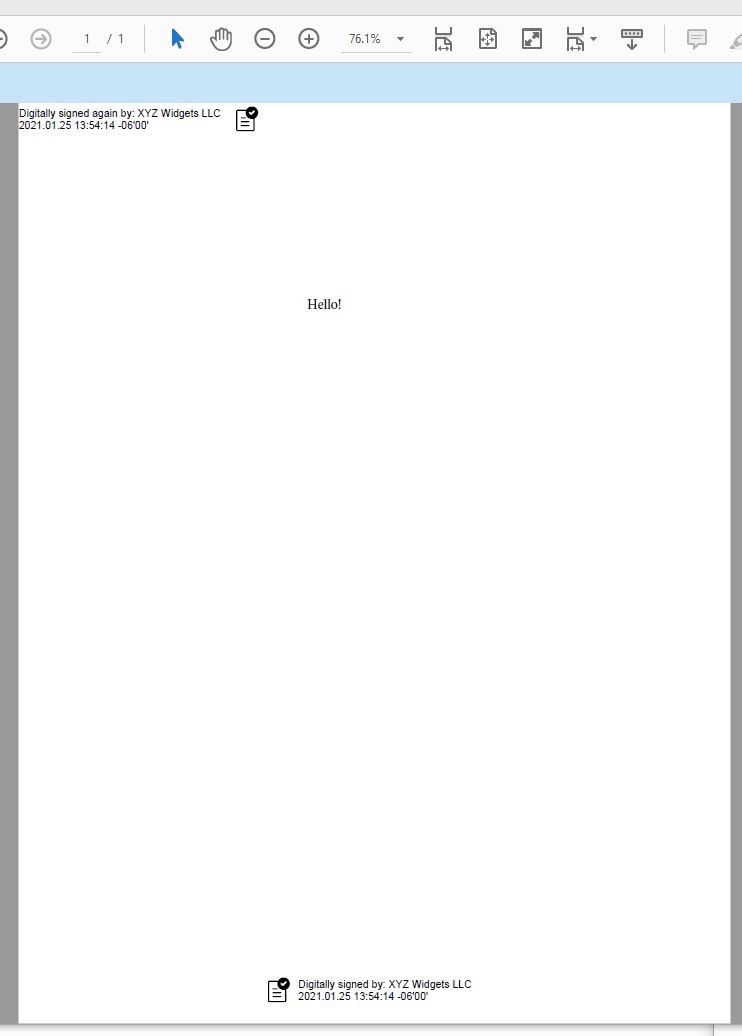
// Here we have the PDF with the signature just added at the exact top/left.
//
// The x,y coordinates of a PDF page are in "user space", called "points", and there are 72 pointes per inch.
// A PDF page (8.5" x 11") is 612 points wide and 792 points high.
// The bottom left is at 0,0. The top right is at 612,792.
//
// To specify the location of a signature rectangle, the "appearance.y" is the y coordinate of the top of the signature rectangle,
// and the "appearance.x" is the x coordinate of the left of the signature rectangle.
// Therefore, to position the signature rectangle at the exact top/left of the page, we do this:
$json->UpdateString('appearance.y','792');
$json->UpdateString('appearance.x','0');
$json->UpdateString('appearance.text[0]','Digitally signed again by: cert_cn');
$json->UpdateString('appearance.text[1]','current_dt');
$json->UpdateString('appearance.image','document-accepted');
$json->UpdateString('appearance.imagePlacement','right');
$pdf2 = new CkPdf();
$success = $pdf2->LoadFile('qa_output/hello_signed.pdf');
$success = $pdf2->SetSigningCert($cert);
$success = $pdf2->SignPdf($json,'qa_output/hello_signed2.pdf');
if ($success == false) {
print $pdf2->lastErrorText() . "\n";
exit;
}
print 'The PDF has been successfully cryptographically signed again.' . "\n";
// Here we have the PDF with the signature just added at the exact top/left.
//  ?>
?>