Visual FoxPro
Visual FoxPro
Create CAdES p7m using Azure Key Vault to Sign in the Cloud
See more Signing in the Cloud Examples
Demonstrates how to create a CAdES p7m, using Azure Key Vault. The signing of the hash happens in the Cloud on Azure Key Vault. Everything else regarding the creation of CAdES happens locally within Chilkat.Note: This example requires Chilkat v9.5.0.96 or greater.
Chilkat Visual FoxPro Downloads
LOCAL lnSuccess
LOCAL loCert
LOCAL loJsonAzure
LOCAL loCrypt
LOCAL loSignedAttrs
LOCAL lcInputXmlPath
LOCAL lcOutputP7mPath
lnSuccess = 0
* This example assumes the Chilkat API to have been previously unlocked.
* See Global Unlock Sample for sample code.
* Load the certificate used for signing. The certificate's private key is stored in
* the Azure Key Vault.
* However, we still need the certificate locally (without private key).
loCert = CreateObject('Chilkat.Cert')
lnSuccess = loCert.LoadFromFile("qa_data/certs/myCert.cer")
IF (lnSuccess = 0) THEN
? loCert.LastErrorText
RELEASE loCert
CANCEL
ENDIF
* Here's a screenshot of our certificate with private key on Azure Key Vault:
* 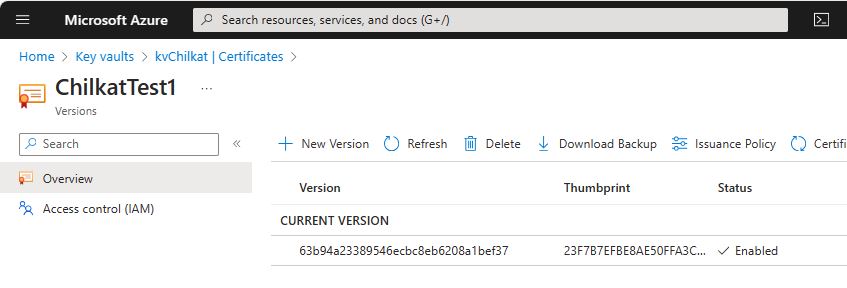 * To sign using the Azure Key Vault,
* add the following lines of code to specify your authentication credentials,
* and the name of the certificate w/ private key on the Azure server to be used.
loJsonAzure = CreateObject('Chilkat.JsonObject')
* Set the "service" equal to "azure_keyvault" to tell Chilkat to use Azure Key Vault for signing.
loJsonAzure.UpdateString("service","azure_keyvault")
loJsonAzure.UpdateString("client_id","APP_ID")
loJsonAzure.UpdateString("client_secret","APP_PASSWORD")
loJsonAzure.UpdateString("tenant_id","TENANT_ID")
* In the above screenshot, our vault name is "kvchilkat". You will use your vault name.
loJsonAzure.UpdateString("vault_name","VAULT_NAME")
* In the above screenshot, our cert name is "ChilkatTest1". You will use your cert name.
loJsonAzure.UpdateString("cert_name","CERT_NAME")
* In the above screenshot, our cert version is "63b94a23389546ecbc8eb6208a1bef37". You will use your cert version.
loJsonAzure.UpdateString("cert_version","CERT_VERSION")
lnSuccess = loCert.SetCloudSigner(loJsonAzure)
loCrypt = CreateObject('Chilkat.Crypt2')
lnSuccess = loCrypt.SetSigningCert(loCert)
IF (lnSuccess = 0) THEN
? loCrypt.LastErrorText
RELEASE loCert
RELEASE loJsonAzure
RELEASE loCrypt
CANCEL
ENDIF
* The CadesEnabled property applies to all methods that create PKCS7 signatures.
* To create a CAdES-BES signature, set this property equal to true.
loCrypt.CadesEnabled = 1
loCrypt.HashAlgorithm = "sha256"
loSignedAttrs = CreateObject('Chilkat.JsonObject')
loSignedAttrs.UpdateInt("contentType",1)
loSignedAttrs.UpdateInt("signingTime",1)
loSignedAttrs.UpdateInt("messageDigest",1)
loSignedAttrs.UpdateInt("signingCertificateV2",1)
loCrypt.SigningAttributes = loSignedAttrs.Emit()
* You can sign any type of file..
lcInputXmlPath = "qa_data/e-Invoice.xml"
lcOutputP7mPath = "qa_output/signed.p7m"
* Create the CAdES-BES attached signature, which contains the original data.
* Chilkat will build the .p7m locally, but will (internally) use ARSS
* to do the RSA signing remotely.
lnSuccess = loCrypt.CreateP7M(lcInputXmlPath,lcOutputP7mPath)
IF (lnSuccess = 0) THEN
? loCrypt.LastErrorText
RELEASE loCert
RELEASE loJsonAzure
RELEASE loCrypt
RELEASE loSignedAttrs
CANCEL
ENDIF
? "Success."
RELEASE loCert
RELEASE loJsonAzure
RELEASE loCrypt
RELEASE loSignedAttrs
* To sign using the Azure Key Vault,
* add the following lines of code to specify your authentication credentials,
* and the name of the certificate w/ private key on the Azure server to be used.
loJsonAzure = CreateObject('Chilkat.JsonObject')
* Set the "service" equal to "azure_keyvault" to tell Chilkat to use Azure Key Vault for signing.
loJsonAzure.UpdateString("service","azure_keyvault")
loJsonAzure.UpdateString("client_id","APP_ID")
loJsonAzure.UpdateString("client_secret","APP_PASSWORD")
loJsonAzure.UpdateString("tenant_id","TENANT_ID")
* In the above screenshot, our vault name is "kvchilkat". You will use your vault name.
loJsonAzure.UpdateString("vault_name","VAULT_NAME")
* In the above screenshot, our cert name is "ChilkatTest1". You will use your cert name.
loJsonAzure.UpdateString("cert_name","CERT_NAME")
* In the above screenshot, our cert version is "63b94a23389546ecbc8eb6208a1bef37". You will use your cert version.
loJsonAzure.UpdateString("cert_version","CERT_VERSION")
lnSuccess = loCert.SetCloudSigner(loJsonAzure)
loCrypt = CreateObject('Chilkat.Crypt2')
lnSuccess = loCrypt.SetSigningCert(loCert)
IF (lnSuccess = 0) THEN
? loCrypt.LastErrorText
RELEASE loCert
RELEASE loJsonAzure
RELEASE loCrypt
CANCEL
ENDIF
* The CadesEnabled property applies to all methods that create PKCS7 signatures.
* To create a CAdES-BES signature, set this property equal to true.
loCrypt.CadesEnabled = 1
loCrypt.HashAlgorithm = "sha256"
loSignedAttrs = CreateObject('Chilkat.JsonObject')
loSignedAttrs.UpdateInt("contentType",1)
loSignedAttrs.UpdateInt("signingTime",1)
loSignedAttrs.UpdateInt("messageDigest",1)
loSignedAttrs.UpdateInt("signingCertificateV2",1)
loCrypt.SigningAttributes = loSignedAttrs.Emit()
* You can sign any type of file..
lcInputXmlPath = "qa_data/e-Invoice.xml"
lcOutputP7mPath = "qa_output/signed.p7m"
* Create the CAdES-BES attached signature, which contains the original data.
* Chilkat will build the .p7m locally, but will (internally) use ARSS
* to do the RSA signing remotely.
lnSuccess = loCrypt.CreateP7M(lcInputXmlPath,lcOutputP7mPath)
IF (lnSuccess = 0) THEN
? loCrypt.LastErrorText
RELEASE loCert
RELEASE loJsonAzure
RELEASE loCrypt
RELEASE loSignedAttrs
CANCEL
ENDIF
? "Success."
RELEASE loCert
RELEASE loJsonAzure
RELEASE loCrypt
RELEASE loSignedAttrs