.NET Core C#
.NET Core C#
Sign PDF: Choosing RSASSA-PSS or PKCS1-v1_5 and Hash Algorithm
See more PDF Signatures Examples
This example demonstrates how to choose between RSASSA-PSS vs. PKCS1-v1_5 and the hash algorithm when signing a PDF.Chilkat .NET Core C# Downloads
bool success = false;

//  This example requires the Chilkat API to have been previously unlocked.
//  See Global Unlock Sample for sample code.

Chilkat.Pdf pdf = new Chilkat.Pdf();

//  Load a PDF to be signed.
//  The "hello.pdf" is available at https://chilkatsoft.com/hello.pdf
success = pdf.LoadFile("qa_data/pdf/hello.pdf");
if (success == false) {
    Debug.WriteLine(pdf.LastErrorText);
    return;
}

//  Options for signing are specified in JSON.
Chilkat.JsonObject json = new Chilkat.JsonObject();

//  In most cases, the signingCertificateV2 attribute is needed.
json.UpdateInt("signingCertificateV2",1);

//  ---------------------------------------------------------------------------------------------------------------------------
//  This example is the same as the example at Sign a PDF (Simplest Example Possible)
//  but with the following lines added to specify the signature scheme and hash algorithm.

//  The signature schemes PKCS-v1_5 and RSASSA-PSS have differences.
//  PKCSV1_5 is deterministic. The same message and key will produce an identical signature value each time.
//  PSS is randomized and will produce a different signature value each time.

//  To choose the hash algorithm:
//  (The typical choices are sha1, sha256, sha384, and sha512.)
json.UpdateString("hashAlgorithm","sha256");

//  To choose PKCSV1_5:
json.UpdateString("signingAlgorithm","pkcs");
//  Alternatively, to choose RSASSA-PSS:
json.UpdateString("signingAlgorithm","pss");

//  If not specified, the default is SHA256 with PKCS-v1_5.

//  The remainder of this example is the same as the example at Sign a PDF (Simplest Example Possible)
//  ---------------------------------------------------------------------------------------------------------------------------

//  Put the signature on page 1, top left
json.UpdateInt("page",1);
json.UpdateString("appearance.y","top");
json.UpdateString("appearance.x","left");

//  Use a font scale of 10.0
json.UpdateString("appearance.fontScale","10.0");

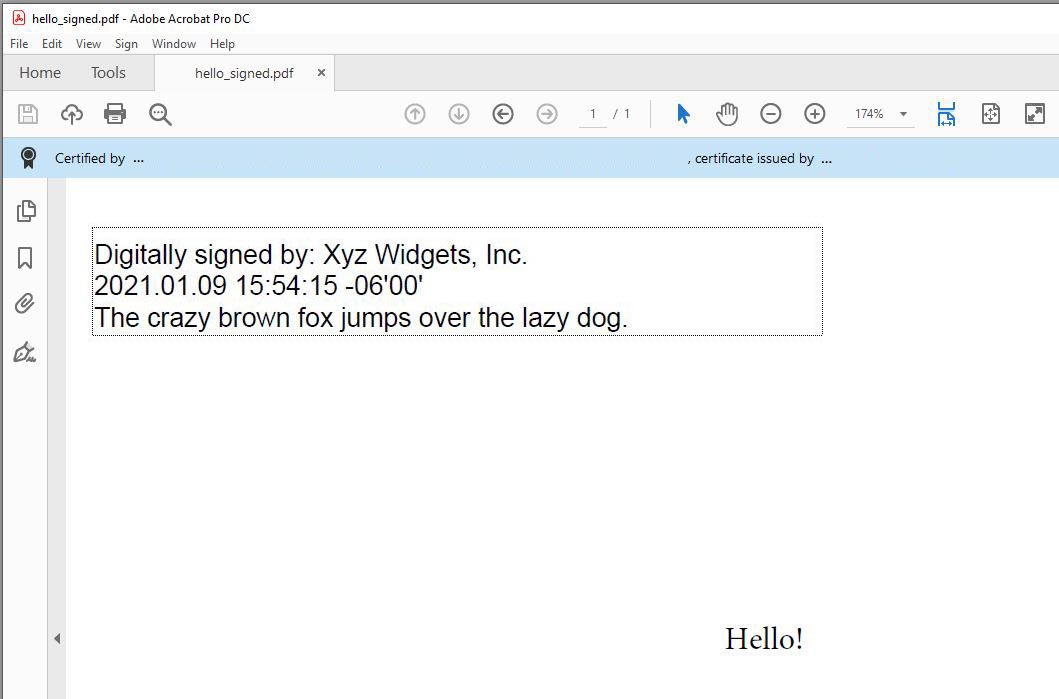
//  In this example, the appearance of the digital signature will contain three lines:
//  1) The signing certificate's common name
//  2) The current date/time
//  3) Some arbitrary text.
//  The keyword "cert_cn" is replaced with the Certificate's Subject Common Name.
//  The keyword "current_dt" is replaced with the current date/time.
//  Any number of appearance text lines can be added.
json.UpdateString("appearance.text[0]","Digitally signed by: cert_cn");
json.UpdateString("appearance.text[1]","current_dt");
json.UpdateString("appearance.text[2]","The crazy brown fox jumps over the lazy dog.");

//  Load the signing certificate. (Use your own certificate.)
Chilkat.Cert cert = new Chilkat.Cert();
success = cert.LoadPfxFile("qa_data/pfx/myPdfSigningCert.pfx","secret");
if (success == false) {
    Debug.WriteLine(cert.LastErrorText);
    return;
}

//  Tell the pdf object to use the certificate for signing.
success = pdf.SetSigningCert(cert);
if (success == false) {
    Debug.WriteLine(pdf.LastErrorText);
    return;
}

success = pdf.SignPdf(json,"qa_output/hello_signed.pdf");
if (success == false) {
    Debug.WriteLine(pdf.LastErrorText);
    return;
}

Debug.WriteLine("The PDF has been successfully cryptographically signed.");

//  The appearance of the signature appears in Adobe Acrobat as shown here:

//