.NET Core C#
.NET Core C#
Azure Key Vault - Create or Update a JSON Secret
See more Secrets Examples
Demonstrates how to create or update a JSON secret stored in the Azure Key Vault.Note: This example requires Chilkat v10.1.0 or later.
Chilkat .NET Core C# Downloads
bool success = false;

// This example requires the Chilkat API to have been previously unlocked.
// See Global Unlock Sample for sample code.

// The bootstrap secret will contain the following information:

// Azure Tenant ID
// Azure Client ID
// Azure Client Secret

// See following examples for setting up a bootstrap secret in memory,
// or in the local manager (Windows Credentials Manager or Apple Keychain)
// Setup Bootstrap Secret in Local Manager
// Setup Bootstrap Secret in Memory
Chilkat.Secrets bootstrap = new Chilkat.Secrets();

// Set the location of the bootstrap secret.
// Can be "local_manager" or "memory", depending on how you setup the bootstrap secret.
// ---------------------------------------------------------------------------------------------
// If your operating system is NOT Windows or MacOS/iOS, then change "local_manager" to "memory"
// You can also, if desired, use "memory" on Windows and MacOS/iOS if your bootstrap secret was previously setup in memory.
// ---------------------------------------------------------------------------------------------
bootstrap.Location = "local_manager";

// Specify the bootstrap secret to be used.
Chilkat.JsonObject bsId = new Chilkat.JsonObject();
bsId.UpdateString("appName","azure_bs");
bsId.UpdateString("service","Example");
bsId.UpdateString("username","Joe");

// ----------------------------------------------------
Chilkat.Secrets secrets = new Chilkat.Secrets();

secrets.Location = "azure_key_vault";
success = secrets.SetBootstrapSecret(bsId,bootstrap);
if (success == false) {
    Debug.WriteLine(secrets.LastErrorText);
    return;
}

// ----
// Specify the name of the secret.
// service and username are required.
// appName and domain are optional.
// Note: The values are arbitrary and can be anything you want.
Chilkat.JsonObject json = new Chilkat.JsonObject();
json.UpdateString("appName","MyApp");
json.UpdateString("service","OAuth2");
json.UpdateString("domain","onedrive");
json.UpdateString("username","matt");

// For Azure Key Vault, we also need to specify the name of the vault where the secret is to be stored.
// Replace "kvChilkat" with the name of your key vault.
json.UpdateString("vaultName","kvChilkat");

// Get the secret to be stored.
Chilkat.JsonObject jsonSecret = new Chilkat.JsonObject();
success = jsonSecret.LoadFile("qa_data/tokens/oneDrive.json");
if (success == false) {
    Debug.WriteLine(jsonSecret.LastErrorText);
    return;
}

// Create or update the secret.
success = secrets.UpdateSecretJson(json,jsonSecret);
if (success == false) {
    Debug.WriteLine(secrets.LastErrorText);
    return;
}

Debug.WriteLine("Success.");

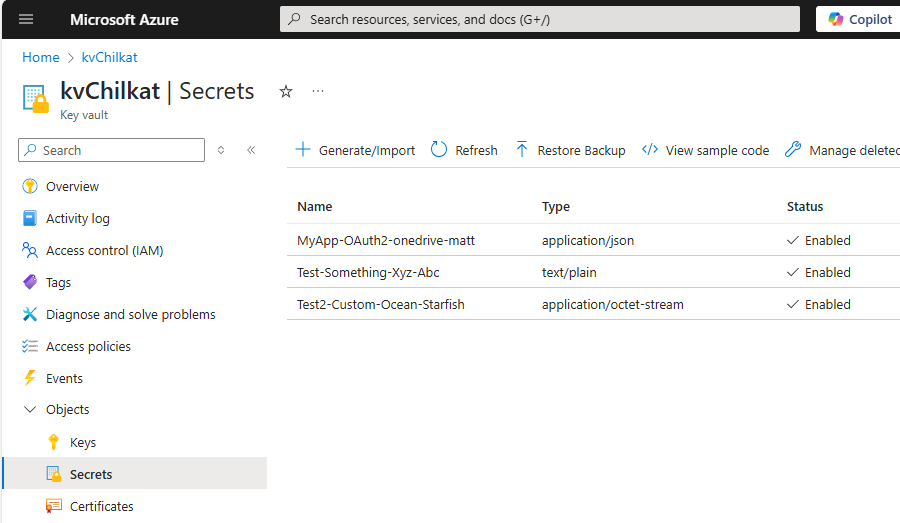
// Here you can see the secret that was created:

//