Delphi ActiveX
Delphi ActiveX
PDF Sign Under Existing Signature
See more PDF Signatures Examples
This example explains how sign a previously-signed PDF and place the signature appearance below the existing signature.Note: This example requires Chilkat v9.5.0.85 or greater.
Chilkat Delphi ActiveX Downloads
var
success: Integer;
pdf: TChilkatPdf;
json: TChilkatJsonObject;
cert: TChilkatCert;
begin
success := 0;
// This example requires the Chilkat API to have been previously unlocked.
// See Global Unlock Sample for sample code.
pdf := TChilkatPdf.Create(Self);
// Load a PDF to be signed.
success := pdf.LoadFile('qa_data/pdf/sign_testing_4/hello_signed.pdf');
if (success = 0) then
begin
Memo1.Lines.Add(pdf.LastErrorText);
Exit;
end;
// The PDF we'll be signing already has a signature added in Adobe Acrobat DC.
// It looks like this:
// (Notice the Adobe background logo, which is commonly what you'll see when a signature
// is created by Adobe Acrobat. Chilkat (obviously) does not create signatures using the Adobe
// logo because it would be a copyright violation.)
// 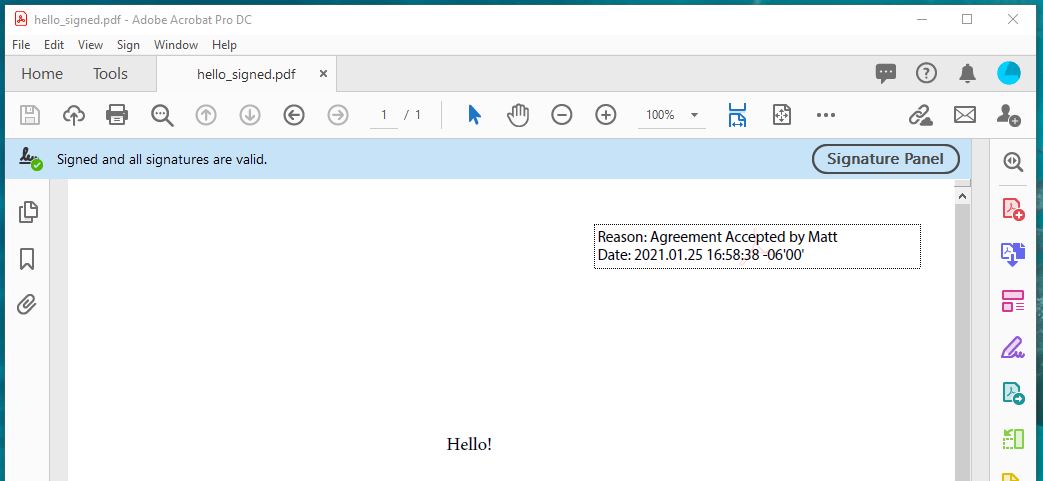 // Options for signing are specified in JSON.
json := TChilkatJsonObject.Create(Self);
// In most cases, the signingCertificateV2 and signingTime attributes are required.
json.UpdateInt('signingCertificateV2',1);
json.UpdateInt('signingTime',1);
// To put our new signature underneath the existing signature, we have to specify the page
// where the existing signature is found, and then we can specify "under" for the "appearance.y"
json.UpdateInt('page',1);
json.UpdateString('appearance.y','under');
json.UpdateString('appearance.fontScale','10.0');
json.UpdateString('appearance.text[0]','Reason: Agreement Accepted by John');
json.UpdateString('appearance.text[1]','Date: current_dt');
// Load the signing certificate. (Use your own certificate.)
cert := TChilkatCert.Create(Self);
success := cert.LoadPfxFile('qa_data/pfx/myPdfSigningCert.pfx','secret');
if (success = 0) then
begin
Memo1.Lines.Add(cert.LastErrorText);
Exit;
end;
// Tell the pdf object to use the certificate for signing.
success := pdf.SetSigningCert(cert.ControlInterface);
if (success = 0) then
begin
Memo1.Lines.Add(pdf.LastErrorText);
Exit;
end;
// Note: When adding an additional signature to a PDF, the existing signatures
// are validated, and this includes validating the certificates previously used to
// create the existing signatures. (A signature typically embeds the signing certs.)
// In some cases, the certificates and/or certs in the chain of authentication for
// existing signatures are not present, and are not available on the current system.
// In this case, you can skip the validation by setting this keyword in UncommonOptions:
pdf.UncommonOptions := 'NO_VERIFY_CERT_SIGNATURES';
success := pdf.SignPdf(json.ControlInterface,'qa_output/hello_signed.pdf');
if (success = 0) then
begin
Memo1.Lines.Add(pdf.LastErrorText);
Exit;
end;
Memo1.Lines.Add('The PDF has been successfully cryptographically signed.');
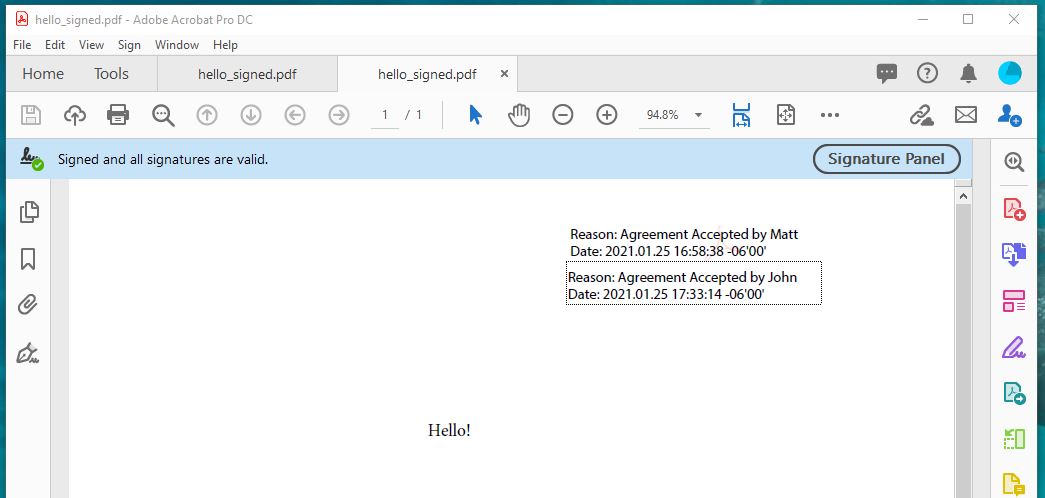
// Here's a screenshot of the 2nd signature positioned under the 1st in Adobe Acrobat:
//
// Options for signing are specified in JSON.
json := TChilkatJsonObject.Create(Self);
// In most cases, the signingCertificateV2 and signingTime attributes are required.
json.UpdateInt('signingCertificateV2',1);
json.UpdateInt('signingTime',1);
// To put our new signature underneath the existing signature, we have to specify the page
// where the existing signature is found, and then we can specify "under" for the "appearance.y"
json.UpdateInt('page',1);
json.UpdateString('appearance.y','under');
json.UpdateString('appearance.fontScale','10.0');
json.UpdateString('appearance.text[0]','Reason: Agreement Accepted by John');
json.UpdateString('appearance.text[1]','Date: current_dt');
// Load the signing certificate. (Use your own certificate.)
cert := TChilkatCert.Create(Self);
success := cert.LoadPfxFile('qa_data/pfx/myPdfSigningCert.pfx','secret');
if (success = 0) then
begin
Memo1.Lines.Add(cert.LastErrorText);
Exit;
end;
// Tell the pdf object to use the certificate for signing.
success := pdf.SetSigningCert(cert.ControlInterface);
if (success = 0) then
begin
Memo1.Lines.Add(pdf.LastErrorText);
Exit;
end;
// Note: When adding an additional signature to a PDF, the existing signatures
// are validated, and this includes validating the certificates previously used to
// create the existing signatures. (A signature typically embeds the signing certs.)
// In some cases, the certificates and/or certs in the chain of authentication for
// existing signatures are not present, and are not available on the current system.
// In this case, you can skip the validation by setting this keyword in UncommonOptions:
pdf.UncommonOptions := 'NO_VERIFY_CERT_SIGNATURES';
success := pdf.SignPdf(json.ControlInterface,'qa_output/hello_signed.pdf');
if (success = 0) then
begin
Memo1.Lines.Add(pdf.LastErrorText);
Exit;
end;
Memo1.Lines.Add('The PDF has been successfully cryptographically signed.');
// Here's a screenshot of the 2nd signature positioned under the 1st in Adobe Acrobat:
//