B4X
B4X
PDF Signature Page Location
See more PDF Signatures Examples
This example demonstrates how to specify the location of a PDF signature on a page.Note: This example requires Chilkat v9.5.0.85 or greater.
Chilkat B4X Downloads
Dim success As Boolean = False
' This example requires the Chilkat API to have been previously unlocked.
' See Global Unlock Sample for sample code.
Dim pdf As ChilkatPdf
pdf.Initialize("pdf")
' Load a PDF to be signed.
' The "hello.pdf" is available at https://chilkatsoft.com/hello.pdf
success = pdf.LoadFile("qa_data/pdf/hello.pdf")
If success = False Then
Log(pdf.LastErrorText)
Return
End If
' Options for signing are specified in JSON.
Dim json As ChilkatJsonObject
json.Initialize
' In most cases, the signingCertificateV2 and signingTime attributes are required.
json.UpdateInt("signingCertificateV2", 1)
json.UpdateInt("signingTime", 1)
' When cryptographically signing a PDF, the signature's appearance can be placed on a specific
' page in the PDF document, and at a specified location on the page.
' The 1st page of the PDF document is page number 1 (we don't use 0-based numbering for PDF page numbers).
' The PDF object has a NumPages property, so we can use it to sign on the last page of the PDF.
json.UpdateInt("page", pdf.NumPages)
' appearance.y and appearance.x JSON properties control the x,y location of the signature.
' The "appearance.y" can be "top" or "bottom".
' The "appearance.x" can be "left", "middle", or "right".
' It is also possible to specify exact PDF location in user space coordinates, which is discussed below.
json.UpdateString("appearance.y", "bottom")
json.UpdateString("appearance.x", "middle")
' In this example, the fontScale (in combination with the number of appearance text lines and the length of the longest text line),
' automatically determine the width/height of the signature text box. Any included graphic (JPG image or built-in SVG) is automatically
' scaled to fit. It is alternatively possible to specify the desired width/height of the signature rectangle. In that case
' you would NOT specify a fontScale because Chilkat would automatically chose a font scale to fit the text to the desired rectangle.
' This example demonstrates how to specify the exact width/height of the PDF signature text box.
json.UpdateString("appearance.fontScale", "9.0")
json.UpdateString("appearance.text[0]", "Digitally signed by: cert_cn")
json.UpdateString("appearance.text[1]", "current_dt")
json.UpdateString("appearance.image", "document-accepted")
json.UpdateString("appearance.imagePlacement", "left")
json.UpdateString("appearance.imageOpacity", "100")
' Load the signing certificate. (Use your own certificate.)
Dim cert As ChilkatCert
cert.Initialize("cert")
success = cert.LoadPfxFile("qa_data/pfx/myPdfSigningCert.pfx", "pfx_password")
If success = False Then
Log(cert.LastErrorText)
Return
End If
' Tell the pdf object to use the certificate for signing.
success = pdf.SetSigningCert(cert)
If success = False Then
Log(pdf.LastErrorText)
Return
End If
success = pdf.SignPdf(json, "qa_output/hello_signed.pdf")
If success = False Then
Log(pdf.LastErrorText)
Return
End If
Log("The PDF has been successfully cryptographically signed.")
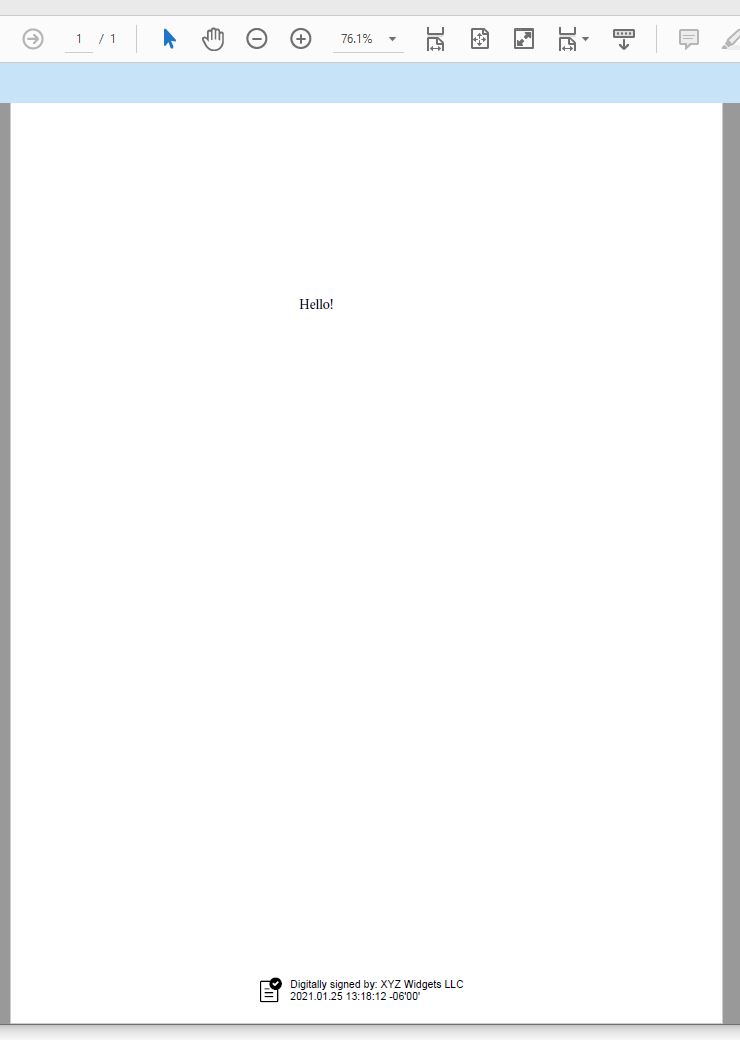
' The appearance of the signature appears in Adobe Acrobat as shown here:
' ----------------------------------------------------------------------------------------------------
' *** Scroll down for information about specifying the PDF signature x,y location in user space coordinates.
' ----------------------------------------------------------------------------------------------------
'  ' The x,y coordinates of a PDF page are in "user space", called "points", and there are 72 pointes per inch.
' A PDF page (8.5" x 11") is 612 points wide and 792 points high.
' The bottom left is at 0,0. The top right is at 612,792.
'
' To specify the location of a signature rectangle, the "appearance.y" is the y coordinate of the top of the signature rectangle,
' and the "appearance.x" is the x coordinate of the left of the signature rectangle.
' Therefore, to position the signature rectangle at the exact top/left of the page, we do this:
json.UpdateString("appearance.y", "792")
json.UpdateString("appearance.x", "0")
json.UpdateString("appearance.text[0]", "Digitally signed again by: cert_cn")
json.UpdateString("appearance.text[1]", "current_dt")
json.UpdateString("appearance.image", "document-accepted")
json.UpdateString("appearance.imagePlacement", "right")
Dim pdf2 As ChilkatPdf
pdf2.Initialize("pdf2")
success = pdf2.LoadFile("qa_output/hello_signed.pdf")
success = pdf2.SetSigningCert(cert)
success = pdf2.SignPdf(json, "qa_output/hello_signed2.pdf")
If success = False Then
Log(pdf2.LastErrorText)
Return
End If
Log("The PDF has been successfully cryptographically signed again.")
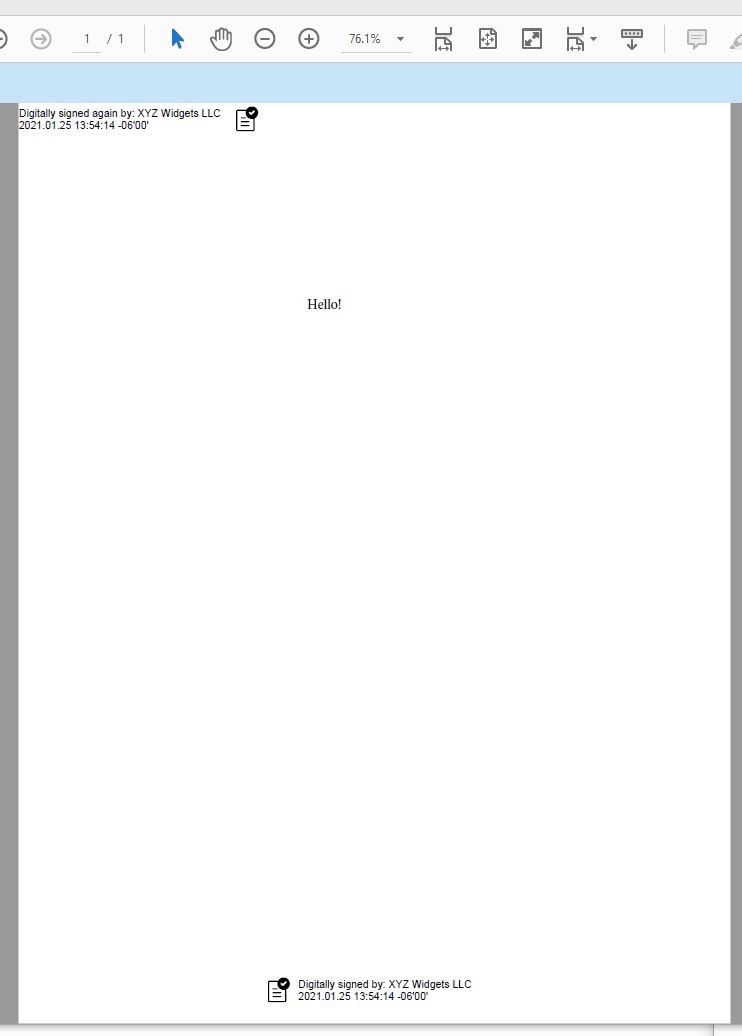
' Here we have the PDF with the signature just added at the exact top/left.
'
' The x,y coordinates of a PDF page are in "user space", called "points", and there are 72 pointes per inch.
' A PDF page (8.5" x 11") is 612 points wide and 792 points high.
' The bottom left is at 0,0. The top right is at 612,792.
'
' To specify the location of a signature rectangle, the "appearance.y" is the y coordinate of the top of the signature rectangle,
' and the "appearance.x" is the x coordinate of the left of the signature rectangle.
' Therefore, to position the signature rectangle at the exact top/left of the page, we do this:
json.UpdateString("appearance.y", "792")
json.UpdateString("appearance.x", "0")
json.UpdateString("appearance.text[0]", "Digitally signed again by: cert_cn")
json.UpdateString("appearance.text[1]", "current_dt")
json.UpdateString("appearance.image", "document-accepted")
json.UpdateString("appearance.imagePlacement", "right")
Dim pdf2 As ChilkatPdf
pdf2.Initialize("pdf2")
success = pdf2.LoadFile("qa_output/hello_signed.pdf")
success = pdf2.SetSigningCert(cert)
success = pdf2.SignPdf(json, "qa_output/hello_signed2.pdf")
If success = False Then
Log(pdf2.LastErrorText)
Return
End If
Log("The PDF has been successfully cryptographically signed again.")
' Here we have the PDF with the signature just added at the exact top/left.
'