B4X
B4X
AWS Secrets Manager - Create or Update a Binary Secret
See more Secrets Examples
Demonstrates how to create or update a binary secret stored in the AWS Secrets Manager.Note: This example requires Chilkat v10.1.0 or later.
Chilkat B4X Downloads
Dim success As Boolean = False

'  This example requires the Chilkat API to have been previously unlocked.
'  See Global Unlock Sample for sample code.

'  The bootstrap secret will contain the following information:

'  AWS Region
'  AWS Access Key
'  AWS Secret Key

'  See following examples for setting up a bootstrap secret in memory,
'  or in the local manager (Windows Credentials Manager or Apple Keychain)
'  Setup Bootstrap Secret in Local Manager
'  Setup Bootstrap Secret in Memory
Dim bootstrap As ChilkatSecrets
bootstrap.Initialize("bootstrap")

'  Set the location of the bootstrap secret.
'  Can be "local_manager" or "memory", depending on how you setup the bootstrap secret.
'  ---------------------------------------------------------------------------------------------
'  If your operating system is NOT Windows or MacOS/iOS, then change "local_manager" to "memory"
'  You can also, if desired, use "memory" on Windows and MacOS/iOS if your bootstrap secret was previously setup in memory.
'  ---------------------------------------------------------------------------------------------
bootstrap.Location = "local_manager"

'  Specify the bootstrap secret to be used.
Dim bsId As ChilkatJsonObject
bsId.Initialize
bsId.UpdateString("appName", "AWS")
bsId.UpdateString("service", "Example")
bsId.UpdateString("username", "Joe")

'  ----------------------------------------------------
Dim secrets As ChilkatSecrets
secrets.Initialize("secrets")

'  Setup for the AWS Secrets Manager
secrets.Location = "aws_secrets_manager"
success = secrets.SetBootstrapSecret(bsId, bootstrap)
If success = False Then
    Log(secrets.LastErrorText)
    Return
End If


'  Specify the name of the secret.
'  service and username are required.
'  appName and domain are optional.
'  Note: The values are arbitrary and can be anything you want.
Dim json As ChilkatJsonObject
json.Initialize
json.UpdateString("appName", "Test2")
json.UpdateString("service", "Custom")
json.UpdateString("domain", "Ocean")
json.UpdateString("username", "Starfish")

'  The purpose of this example is to show how arbitrary binary data
'  can be stored as a secret.

'  We'll use a small JPG image that is approximately 6KB in size.
'  You can test using this same JPG at this URL:
Dim url As String = "https://chilkatdownload.com/sample_data/starfish.jpg"
Dim http As ChilkatHttp
http.Initialize("http")
Dim bd As ChilkatBinData
bd.Initialize
success = http.DownloadBd(url, bd)
If success = False Then
    Log(http.LastErrorText)
    Return
End If


'  Create or update the binary secret.
success = secrets.UpdateSecretBd(json, bd)
If success = False Then
    Log(secrets.LastErrorText)
    Return
End If


Log("Success.")

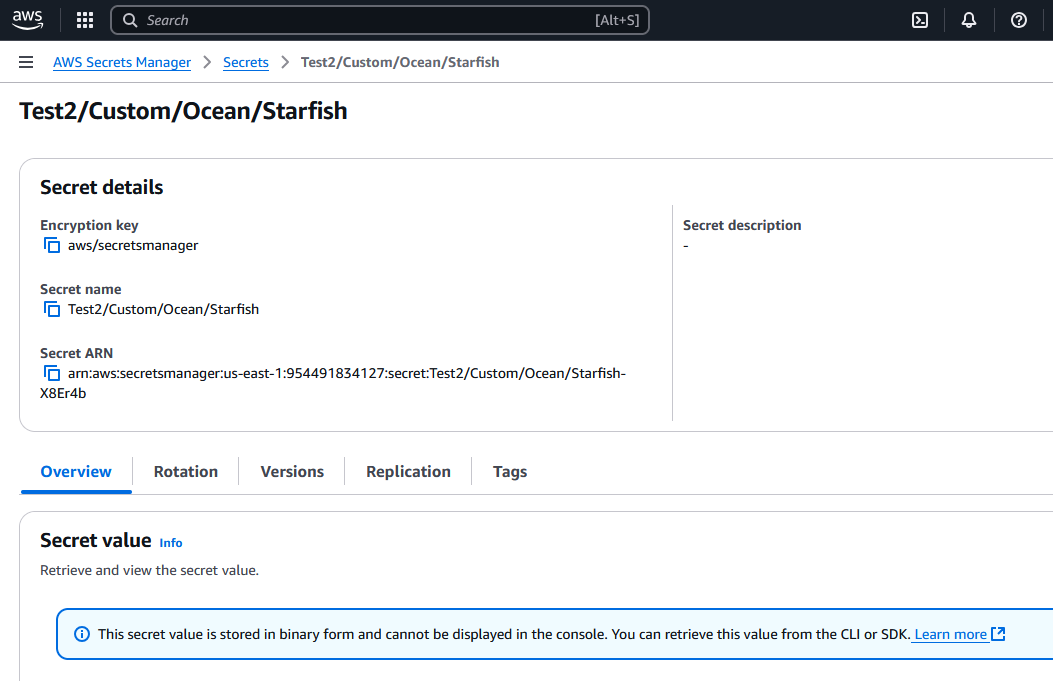
'  Here you can see the secret that was created in the AWS Secrets Manager:

'