AutoIt
AutoIt
Get OAuth2 Access Token for Azure Registered App
See more OAuth2 Examples
Demonstrates how to get OAuth2 access token for an Azure Registered App from a desktop application or script. This example demonstrates the OAuth2 authorization flow.This example requires Chilkat v10.1.2 or greater.
Chilkat AutoIt Downloads
Local $bSuccess = False

;  To further clarify, see OAuth 2.0 Authorization Flow

$oOauth2 = ObjCreate("Chilkat.OAuth2")

;  This should be the port in the localhost callback URL for your app.
;  The callback URL would look like "http://localhost:3017/" if the port number is 3017.
$oOauth2.ListenPort = 3017

;  ----------------------------------------------------------------------------------------------------------
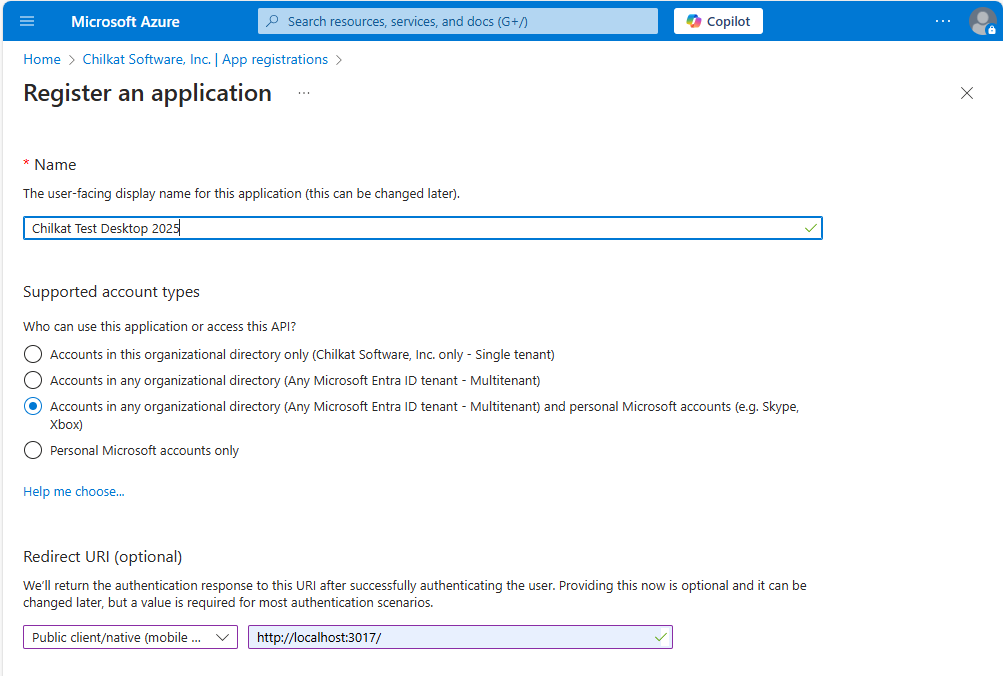
;  The screenshot at the bottom of this page shows how we created the Azure App Registration for this example.
;  ----------------------------------------------------------------------------------------------------------

;  Note: The endpoint depends on the Azure App Registration.
;  See How to Choose the Correct Endpoints for your Azure App Registration
$oOauth2.AuthorizationEndpoint = "https://login.microsoftonline.com/common/oauth2/v2.0/authorize"
$oOauth2.TokenEndpoint = "https://login.microsoftonline.com/common/oauth2/v2.0/token"

;  Replace these with actual values.
$oOauth2.ClientId = "CLIENT_ID"

;  This is for Require Proof Key for Code Exchange (PKCE)
;  See OAuth2 PKCE Explained
$oOauth2.CodeChallenge = True
$oOauth2.CodeChallengeMethod = "S256"

;  Provide a SPACE separated list of scopes.
;  See https://developer.microsoft.com/en-us/graph/docs/authorization/permission_scopes

;  Important: To get a refresh token in the final response, ask for "offline_access" scope
$oOauth2.Scope = "openid profile offline_access user.readwrite mail.readwrite mail.send files.readwrite"

;  Begin the OAuth2 three-legged flow.  This returns a URL that should be loaded in a browser.
Local $sUrl = $oOauth2.StartAuth()
If ($oOauth2.LastMethodSuccess <> True) Then
    ConsoleWrite($oOauth2.LastErrorText & @CRLF)
    Exit
EndIf

;  Launch the default browser on the system and navigate to the url.
;  The LaunchBrowser method was added in Chilkat v10.1.2.
$bSuccess = $oOauth2.LaunchBrowser($sUrl)
If ($bSuccess = False) Then
    ConsoleWrite($oOauth2.LastErrorText & @CRLF)
    Exit
EndIf

;  Wait for the user to approve or deny authorization in the browser.
Local $iNumMsWaited = 0
While ($iNumMsWaited < 90000) And ($oOauth2.AuthFlowState < 3)
    $oOauth2.SleepMs 100
    $iNumMsWaited = $iNumMsWaited + 100
Wend

;  If the browser does not respond within the specified time, AuthFlowState will be:
;
;  1: Waiting for Redirect – The OAuth2 background thread is waiting for the browser's redirect request.
;  2: Waiting for Final Response – The thread is awaiting the final access token response.
;  In either case, cancel the background task initiated by StartAuth.

If ($oOauth2.AuthFlowState < 3) Then
    $oOauth2.Cancel()
    ConsoleWrite("No response from the browser!" & @CRLF)
    Exit
EndIf

;  Check AuthFlowState to determine if authorization was granted, denied, or failed:
;
;  3: Success – OAuth2 flow completed, the background thread exited, and the successful response is in AccessTokenResponse.
;  4: Access Denied – OAuth2 flow completed, the background thread exited, and the error response is in AccessTokenResponse.
;  5: Failure – OAuth2 flow failed before completion, the background thread exited, and error details are in FailureInfo.

If ($oOauth2.AuthFlowState = 5) Then
    ConsoleWrite("OAuth2 failed to complete." & @CRLF)
    ConsoleWrite($oOauth2.FailureInfo & @CRLF)
    Exit
EndIf

If ($oOauth2.AuthFlowState = 4) Then
    ConsoleWrite("OAuth2 authorization was denied." & @CRLF)
    ConsoleWrite($oOauth2.AccessTokenResponse & @CRLF)
    Exit
EndIf

If ($oOauth2.AuthFlowState <> 3) Then
    ConsoleWrite("Unexpected AuthFlowState:" & $oOauth2.AuthFlowState & @CRLF)
    Exit
EndIf

ConsoleWrite("OAuth2 authorization granted!" & @CRLF)
ConsoleWrite("Access Token = " & $oOauth2.AccessToken & @CRLF)

;  When the token is near expiration, your app can refresh as shown here:
;  Refresh Expiring OAuth2 Access Token for Azure Registered App

;  Get the full JSON response:
$oJson = ObjCreate("Chilkat.JsonObject")
$oJson.Load($oOauth2.AccessTokenResponse)
$oJson.EmitCompact = False

;  The JSON response looks like this:

;  {
;    "token_type": "Bearer",
;    "scope": "User.Read Mail.ReadWrite Mail.Send",
;    "expires_in": 3600,
;    "ext_expires_in": 0,
;    "access_token": "EwBAA8l6B...",
;    "refresh_token": "MCRMdbe...",
;    "id_token": "eyJ0eXA..."
;  }

;  If an "expires_on" member does not exist, then add the JSON member by
;  getting the current system date/time and adding the "expires_in" seconds.
;  This way we'll know when the token expires.
If ($oJson.HasMember("expires_on") <> True) Then
    $oDtExpire = ObjCreate("Chilkat.CkDateTime")
    $oDtExpire.SetFromCurrentSystemTime()
    $oDtExpire.AddSeconds($oJson.IntOf("expires_in"))
    $oJson.AppendString("expires_on",$oDtExpire.GetAsUnixTimeStr(False))
EndIf

ConsoleWrite($oJson.Emit() & @CRLF)

;  Save the JSON to a file for future requests.
$oFac = ObjCreate("Chilkat.FileAccess")
$oFac.WriteEntireTextFile("qa_data/tokens/_myAzureApp.json",$oJson.Emit(),"utf-8",False)

;  This is a screenshot of how we created the Azure App for this example:
;