Android™
Android™
Sign PDF with Long-Term Validation (LTV Enabled)
See more PDF Signatures Examples
This example demonstrates how to a sign a PDF with long-term validation (LTV) enabled.Note: This example requires Chilkat v9.5.0.85 or greater.
Chilkat Android™ Downloads
// Important: Don't forget to include the call to System.loadLibrary
// as shown at the bottom of this code sample.
package com.test;
import android.app.Activity;
import com.chilkatsoft.*;
import android.widget.TextView;
import android.os.Bundle;
public class SimpleActivity extends Activity {
private static final String TAG = "Chilkat";
// Called when the activity is first created.
@Override
public void onCreate(Bundle savedInstanceState) {
super.onCreate(savedInstanceState);
boolean success = false;
// This example requires the Chilkat API to have been previously unlocked.
// See Global Unlock Sample for sample code.
CkPdf pdf = new CkPdf();
// Load a PDF to be signed.
// The "hello.pdf" is available at https://chilkatsoft.com/hello.pdf
success = pdf.LoadFile("qa_data/pdf/hello.pdf");
if (success == false) {
Log.i(TAG, pdf.lastErrorText());
return;
}
// Options for signing are specified in JSON.
CkJsonObject json = new CkJsonObject();
// In most cases, the signingCertificateV2 and signingTime attributes are required.
json.UpdateInt("signingCertificateV2",1);
json.UpdateInt("signingTime",1);
// Add the "ltvOcsp" instruction to the JSON passed to SignPdf.
// This is what causes Chilkat to create an LTV-enabled signature.
//
// If we are signing a PDF that already has signatures, then the existing signatures
// are automatically verified, and Chilkat will do OCSP certificate status checking (if possible)
// for those certs in existing signatures (including certs in the certificate chains)
// that do not yet have a valid OCSP response in the DSS (Document Security Store).
// Chilkat will add the OCSP responses to the /OCSPs in the Document Security Store (/DSS).
// Also, and certificates from existing signatures not yet in the DSS are added to the /Certs
// in the DSS.
//
// Also, the "ltvOcsp" causes Chilkat to add the pdfRevocationInfoArchival authenticated attribute
// to the CMS signature. The pdfRevocationInfoArchival attribute (1.2.840.113583.1.1.8)
// contains OCSP responses and the CRL for the issuer of the signing certificate.
// Therefore, Chilkat will send an OCSP request to the signing certificate's OCSP URl (if one exists)
// and will download the CRL from the issuer certificate's CRL Distribution Point (if one exists).
json.UpdateBool("ltvOcsp",true);
// -----------------------------------------------------------------------------------
// Note: If Chilkat produces a signed PDF, but the signature is not LTV-enabled,
// the cause might be related to a failure to download CRL's or OCSP requests.
// See Possible Solution for Failure to Produce LTV-enabled PDF Signature
// -----------------------------------------------------------------------------------
// You can add the following to UncommonOptions to get detailed information about the CRL and OCSP requests
// You shouldn't set the following logging options unless there is a need, because it adds a large amount of information to the LastErrorText.
pdf.put_UncommonOptions("LOG_OCSP_HTTP,LOG_CRL_HTTP");
// Define the appearance of the signature.
json.UpdateInt("page",1);
json.UpdateString("appearance.y","top");
json.UpdateString("appearance.x","left");
json.UpdateString("appearance.fontScale","10.0");
json.UpdateString("appearance.text[0]","Digitally signed by: cert_cn");
json.UpdateString("appearance.text[1]","current_dt");
json.UpdateString("appearance.text[2]","This is an LTV-enabled signature.");
// Load the signing certificate. (Use your own certificate.)
CkCert cert = new CkCert();
success = cert.LoadPfxFile("qa_data/pfx/myPdfSigningCert.pfx","pfxPassword");
if (success == false) {
Log.i(TAG, cert.lastErrorText());
return;
}
// Tell the pdf object to use the certificate for signing.
success = pdf.SetSigningCert(cert);
if (success == false) {
Log.i(TAG, pdf.lastErrorText());
return;
}
success = pdf.SignPdf(json,"qa_output/hello_ltv_signed.pdf");
if (success == false) {
Log.i(TAG, pdf.lastErrorText());
return;
}
Log.i(TAG, "The PDF has been successfully cryptographically signed with long-term validation.");
// If you open the Signature Panel in Adobe Acrobat, it will indicate that the signature is LTV enabled
// as shown here:
// 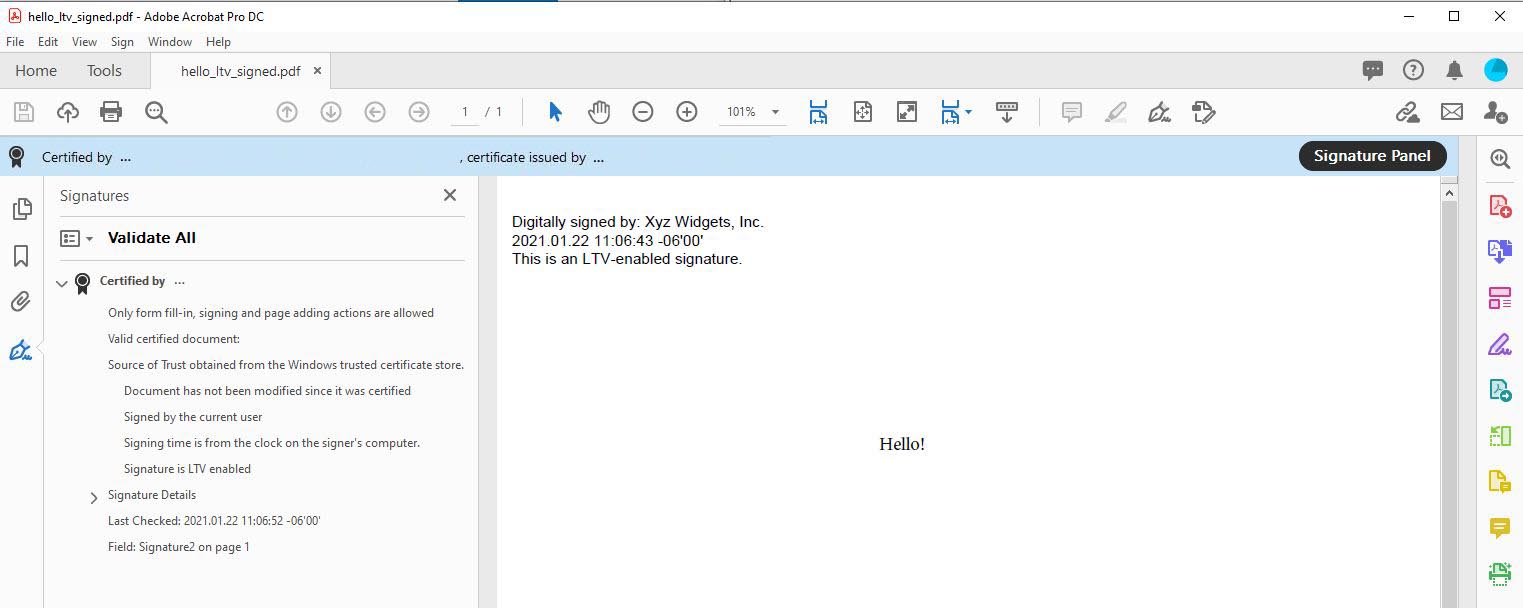 }
static {
System.loadLibrary("chilkat");
// Note: If the incorrect library name is passed to System.loadLibrary,
// then you will see the following error message at application startup:
//"The application <your-application-name> has stopped unexpectedly. Please try again."
}
}
}
static {
System.loadLibrary("chilkat");
// Note: If the incorrect library name is passed to System.loadLibrary,
// then you will see the following error message at application startup:
//"The application <your-application-name> has stopped unexpectedly. Please try again."
}
}