Android™ Requires Chilkat v11.2.0+
Android™
Markdown to HTML - Full Document, Default
See more Markdown Examples
Demonstrates how to convert a complete Markdown document to HTML using no specified theme. This is the default when the JSON options is empty. Unlike theraw theme, the default produces a full HTML document including:
- Document Type Declaration (e.g. <!DOCTYPE html>)
- Root Element (e.g., <html> )
- Head Section
- Enclosing <body> and </body> elements
- Closing </html> element
Chilkat Android™ Downloads
// Important: Don't forget to include the call to System.loadLibrary
// as shown at the bottom of this code sample.
package com.test;
import android.app.Activity;
import com.chilkatsoft.*;
import android.widget.TextView;
import android.os.Bundle;
public class SimpleActivity extends Activity {
private static final String TAG = "Chilkat";
// Called when the activity is first created.
@Override
public void onCreate(Bundle savedInstanceState) {
super.onCreate(savedInstanceState);
boolean success = false;
// Leaving the options empty produces a full HTML document.
CkJsonObject options = new CkJsonObject();
CkStringBuilder sbMarkdown = new CkStringBuilder();
CkStringBuilder sbHtml = new CkStringBuilder();
success = sbMarkdown.LoadFile("qa_data/markdown/test1.md","utf-8");
if (success == false) {
Log.i(TAG, sbMarkdown.lastErrorText());
return;
}
sbMarkdown.MarkdownToHtml(options,sbHtml);
sbHtml.ToCRLF();
Log.i(TAG, sbHtml.getAsString());
// The sample markdown input for this example is identical to the one at Markdown to HTML - Full Document, Raw, where you can view it.
// Sample HTML output as viewed in a browser:
// 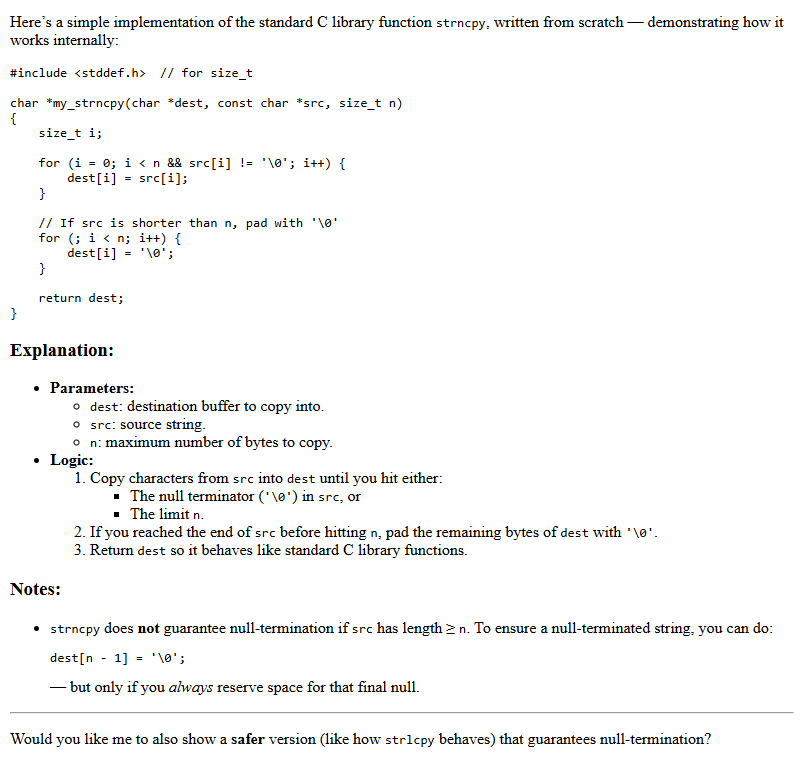 }
static {
System.loadLibrary("chilkat");
// Note: If the incorrect library name is passed to System.loadLibrary,
// then you will see the following error message at application startup:
//"The application <your-application-name> has stopped unexpectedly. Please try again."
}
}
}
static {
System.loadLibrary("chilkat");
// Note: If the incorrect library name is passed to System.loadLibrary,
// then you will see the following error message at application startup:
//"The application <your-application-name> has stopped unexpectedly. Please try again."
}
}