C
C
Create CAdES p7m using Azure Key Vault to Sign in the Cloud
See more Signing in the Cloud Examples
Demonstrates how to create a CAdES p7m, using Azure Key Vault. The signing of the hash happens in the Cloud on Azure Key Vault. Everything else regarding the creation of CAdES happens locally within Chilkat.Note: This example requires Chilkat v9.5.0.96 or greater.
Chilkat C Downloads
#include <C_CkCert.h>
#include <C_CkJsonObject.h>
#include <C_CkCrypt2.h>
void ChilkatSample(void)
{
BOOL success;
HCkCert cert;
HCkJsonObject jsonAzure;
HCkCrypt2 crypt;
HCkJsonObject signedAttrs;
const char *inputXmlPath;
const char *outputP7mPath;
success = FALSE;
// This example assumes the Chilkat API to have been previously unlocked.
// See Global Unlock Sample for sample code.
// Load the certificate used for signing. The certificate's private key is stored in
// the Azure Key Vault.
// However, we still need the certificate locally (without private key).
cert = CkCert_Create();
success = CkCert_LoadFromFile(cert,"qa_data/certs/myCert.cer");
if (success == FALSE) {
printf("%s\n",CkCert_lastErrorText(cert));
CkCert_Dispose(cert);
return;
}
// Here's a screenshot of our certificate with private key on Azure Key Vault:
// 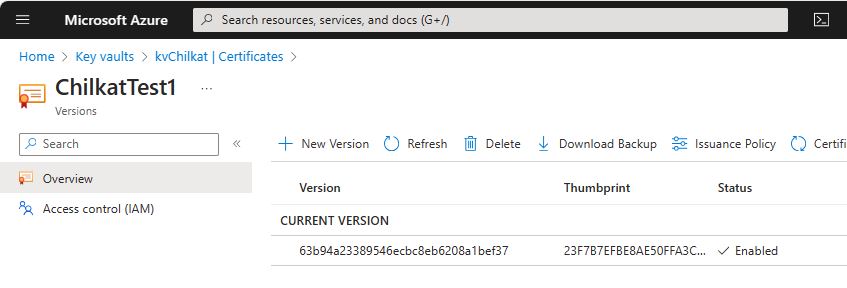 // To sign using the Azure Key Vault,
// add the following lines of code to specify your authentication credentials,
// and the name of the certificate w/ private key on the Azure server to be used.
jsonAzure = CkJsonObject_Create();
// Set the "service" equal to "azure_keyvault" to tell Chilkat to use Azure Key Vault for signing.
CkJsonObject_UpdateString(jsonAzure,"service","azure_keyvault");
CkJsonObject_UpdateString(jsonAzure,"client_id","APP_ID");
CkJsonObject_UpdateString(jsonAzure,"client_secret","APP_PASSWORD");
CkJsonObject_UpdateString(jsonAzure,"tenant_id","TENANT_ID");
// In the above screenshot, our vault name is "kvchilkat". You will use your vault name.
CkJsonObject_UpdateString(jsonAzure,"vault_name","VAULT_NAME");
// In the above screenshot, our cert name is "ChilkatTest1". You will use your cert name.
CkJsonObject_UpdateString(jsonAzure,"cert_name","CERT_NAME");
// In the above screenshot, our cert version is "63b94a23389546ecbc8eb6208a1bef37". You will use your cert version.
CkJsonObject_UpdateString(jsonAzure,"cert_version","CERT_VERSION");
success = CkCert_SetCloudSigner(cert,jsonAzure);
crypt = CkCrypt2_Create();
success = CkCrypt2_SetSigningCert(crypt,cert);
if (success == FALSE) {
printf("%s\n",CkCrypt2_lastErrorText(crypt));
CkCert_Dispose(cert);
CkJsonObject_Dispose(jsonAzure);
CkCrypt2_Dispose(crypt);
return;
}
// The CadesEnabled property applies to all methods that create PKCS7 signatures.
// To create a CAdES-BES signature, set this property equal to true.
CkCrypt2_putCadesEnabled(crypt,TRUE);
CkCrypt2_putHashAlgorithm(crypt,"sha256");
signedAttrs = CkJsonObject_Create();
CkJsonObject_UpdateInt(signedAttrs,"contentType",1);
CkJsonObject_UpdateInt(signedAttrs,"signingTime",1);
CkJsonObject_UpdateInt(signedAttrs,"messageDigest",1);
CkJsonObject_UpdateInt(signedAttrs,"signingCertificateV2",1);
CkCrypt2_putSigningAttributes(crypt,CkJsonObject_emit(signedAttrs));
// You can sign any type of file..
inputXmlPath = "qa_data/e-Invoice.xml";
outputP7mPath = "qa_output/signed.p7m";
// Create the CAdES-BES attached signature, which contains the original data.
// Chilkat will build the .p7m locally, but will (internally) use ARSS
// to do the RSA signing remotely.
success = CkCrypt2_CreateP7M(crypt,inputXmlPath,outputP7mPath);
if (success == FALSE) {
printf("%s\n",CkCrypt2_lastErrorText(crypt));
CkCert_Dispose(cert);
CkJsonObject_Dispose(jsonAzure);
CkCrypt2_Dispose(crypt);
CkJsonObject_Dispose(signedAttrs);
return;
}
printf("Success.\n");
CkCert_Dispose(cert);
CkJsonObject_Dispose(jsonAzure);
CkCrypt2_Dispose(crypt);
CkJsonObject_Dispose(signedAttrs);
}
// To sign using the Azure Key Vault,
// add the following lines of code to specify your authentication credentials,
// and the name of the certificate w/ private key on the Azure server to be used.
jsonAzure = CkJsonObject_Create();
// Set the "service" equal to "azure_keyvault" to tell Chilkat to use Azure Key Vault for signing.
CkJsonObject_UpdateString(jsonAzure,"service","azure_keyvault");
CkJsonObject_UpdateString(jsonAzure,"client_id","APP_ID");
CkJsonObject_UpdateString(jsonAzure,"client_secret","APP_PASSWORD");
CkJsonObject_UpdateString(jsonAzure,"tenant_id","TENANT_ID");
// In the above screenshot, our vault name is "kvchilkat". You will use your vault name.
CkJsonObject_UpdateString(jsonAzure,"vault_name","VAULT_NAME");
// In the above screenshot, our cert name is "ChilkatTest1". You will use your cert name.
CkJsonObject_UpdateString(jsonAzure,"cert_name","CERT_NAME");
// In the above screenshot, our cert version is "63b94a23389546ecbc8eb6208a1bef37". You will use your cert version.
CkJsonObject_UpdateString(jsonAzure,"cert_version","CERT_VERSION");
success = CkCert_SetCloudSigner(cert,jsonAzure);
crypt = CkCrypt2_Create();
success = CkCrypt2_SetSigningCert(crypt,cert);
if (success == FALSE) {
printf("%s\n",CkCrypt2_lastErrorText(crypt));
CkCert_Dispose(cert);
CkJsonObject_Dispose(jsonAzure);
CkCrypt2_Dispose(crypt);
return;
}
// The CadesEnabled property applies to all methods that create PKCS7 signatures.
// To create a CAdES-BES signature, set this property equal to true.
CkCrypt2_putCadesEnabled(crypt,TRUE);
CkCrypt2_putHashAlgorithm(crypt,"sha256");
signedAttrs = CkJsonObject_Create();
CkJsonObject_UpdateInt(signedAttrs,"contentType",1);
CkJsonObject_UpdateInt(signedAttrs,"signingTime",1);
CkJsonObject_UpdateInt(signedAttrs,"messageDigest",1);
CkJsonObject_UpdateInt(signedAttrs,"signingCertificateV2",1);
CkCrypt2_putSigningAttributes(crypt,CkJsonObject_emit(signedAttrs));
// You can sign any type of file..
inputXmlPath = "qa_data/e-Invoice.xml";
outputP7mPath = "qa_output/signed.p7m";
// Create the CAdES-BES attached signature, which contains the original data.
// Chilkat will build the .p7m locally, but will (internally) use ARSS
// to do the RSA signing remotely.
success = CkCrypt2_CreateP7M(crypt,inputXmlPath,outputP7mPath);
if (success == FALSE) {
printf("%s\n",CkCrypt2_lastErrorText(crypt));
CkCert_Dispose(cert);
CkJsonObject_Dispose(jsonAzure);
CkCrypt2_Dispose(crypt);
CkJsonObject_Dispose(signedAttrs);
return;
}
printf("Success.\n");
CkCert_Dispose(cert);
CkJsonObject_Dispose(jsonAzure);
CkCrypt2_Dispose(crypt);
CkJsonObject_Dispose(signedAttrs);
}