Swift
Swift
Send HTML Email with Image to iPhone
Demonstrates how to compose an HTML email with an embedded image that will display correctly on an iPhone. This example produces an email that looks like this on the iPhone: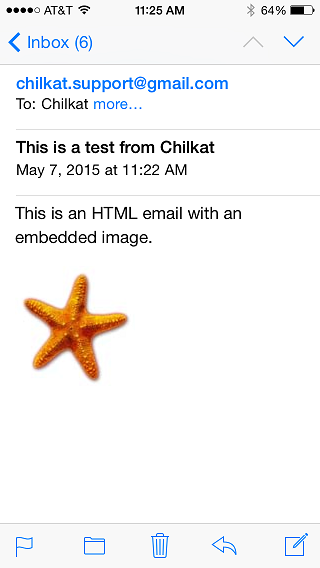
Chilkat Swift Downloads
func chilkatTest() {
    var success: Bool = false

    // This example requires the Chilkat API to have been previously unlocked.
    // See Global Unlock Sample for sample code.

    // The mailman object is used for sending and receiving email.
    let mailman = CkoMailMan()!

    // Use your SMTP server hostname.  This example uses office365, but it could be any SMTP server..
    mailman.smtpHost = "outlook.office365.com"
    mailman.smtpPort = 587
    mailman.startTLS = true

    // Set the SMTP login/password
    mailman.smtpUsername = "OFFICE365-SMTP-LOGIN"
    mailman.smtpPassword = "OFFICE365-SMTP-PASSWORD"

    // Create a new email object
    let email = CkoEmail()!
    email.subject = "Testing for Chilkat SMTP API..."
    email.body = "Testing for Chilkat SMTP API..."
    email.from = "Chilkat Support <my-office365-user@mydomain.com>"
    email.add(to: "Chilkat Support", emailAddress: "support@chilkatsoft.com")

    // For whatever reason, the iPhone's email program requires
    // images in HTML to be referenced by Content-ID.  Therefore,
    // we must add the image like this:
    var contentIdStarfish: String? = email.addRelatedFile(path: "qa_data/jpg/starfish.jpg")
    if email.lastMethodSuccess != true {
        print("\(email.lastErrorText!)")
        return
    }

    // The src attribute for the image tag is set to the contentIdStarfish:
    let sbHtml = CkoStringBuilder()!
    sbHtml.append(value: "<html><body><p>This is an HTML email with an embedded image.</p>")
    sbHtml.append(value: "<p><img src=\"cid:CONTENT_ID_STARFISH\" /></p></body></html>")
    var numReplacements: Int = sbHtml.replace(value: "CONTENT_ID_STARFISH", replacement: contentIdStarfish).intValue

    email.setHtmlBody(html: sbHtml.getAsString())

    success = mailman.sendEmail(email: email)
    if success != true {
        print("\(mailman.lastErrorText!)")
    }
    else {
        print("Mail Sent!")
    }


}