Swift
Swift
Google Sheets - Append Values to an Existing Spreadsheet
See more Google Sheets Examples
Appends values to an existing Google spreadsheet.Chilkat Swift Downloads
func chilkatTest() {
var success: Bool = false
// This example requires the Chilkat API to have been previously unlocked.
// See Global Unlock Sample for sample code.
// This example uses a previously obtained access token having permission for the
// Google Sheets scope.
// In this example, Get Google Sheets OAuth2 Access Token, the access
// token was saved to a JSON file. This example fetches the access token from the file..
let jsonToken = CkoJsonObject()!
success = jsonToken.loadFile(path: "qa_data/tokens/googleSheets.json")
if jsonToken.hasMember(jsonPath: "access_token") == false {
print("No access token found.")
return
}
let http = CkoHttp()!
http.authToken = jsonToken.string(of: "access_token")
// To append values to an existing spreadsheet, our HTTP request body will
// contain JSON in the format of a "ValueRange". For example, the spreadsheet we'll be
// adding to in this example looks like this:
// 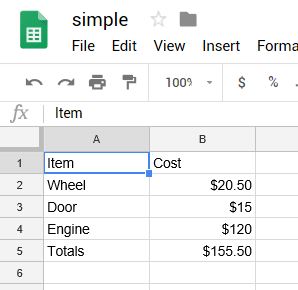 // The JSON ValueRange for the cells in the above spreadsheet is:
// {
// "range": "Sheet1!A1:B5",
// "majorDimension": "ROWS",
// "values": [
// [
// "Item",
// "Cost"
// ],
// [
// "Wheel",
// "$20.50"
// ],
// [
// "Door",
// "$15"
// ],
// [
// "Engine",
// "$100"
// ],
// [
// "Totals",
// "$135.50"
// ]
// ]
// }
// This example will append 6 cells (3 rows / 2 columns).
// We'll be appending the following:
//
// "Paint", "$100"
// "Brakes", "$100"
// "New Total", "$335.50"
//
// The range of cells we'll be appending is A1:B5
// Therefore, the ValueRange JSON we'll be sending in our POST body is:
// {
// "range": "Sheet1!A1:B5",
// "majorDimension": "ROWS",
// "values": [
// [
// "Paint",
// "$100"
// ],
// [
// "Brakes",
// "$100"
// ],
// [
// "New Total",
// "$335.50"
// ]
// ]
// }
let json = CkoJsonObject()!
json.updateString(jsonPath: "range", value: "Sheet1!A1:B5")
json.updateString(jsonPath: "majorDimension", value: "ROWS")
json.i = 0
json.j = 1
json.updateString(jsonPath: "values[i][j]", value: "Paint")
json.j = 1
json.updateString(jsonPath: "values[i][j]", value: "$100")
json.i = 1
json.j = 0
json.updateString(jsonPath: "values[i][j]", value: "Brakes")
json.j = 1
json.updateString(jsonPath: "values[i][j]", value: "$100")
json.i = 2
json.j = 0
json.updateString(jsonPath: "values[i][j]", value: "Totals")
json.j = 1
json.updateString(jsonPath: "values[i][j]", value: "$335.50")
json.emitCompact = false
print("\(json.emit()!)")
// Send the POST to:
// https://sheets.googleapis.com/v4/spreadsheets/{spreadsheetId}/values/{range}:append?valueInputOption=USER_ENTERED
http.setUrlVar(name: "spreadsheetId", value: "1_SO2L-Y6nCayNpNppJLF0r9yHB2UnaCleGCKeE4O0SA")
http.setUrlVar(name: "range", value: "Sheet1!A1:B5")
let resp = CkoHttpResponse()!
success = http.httpJson(verb: "POST", url: "https://sheets.googleapis.com/v4/spreadsheets/{$spreadsheetId}/values/{$range}:append?valueInputOption=USER_ENTERED", json: json, contentType: "application/json", response: resp)
if success == false {
print("\(http.lastErrorText!)")
return
}
print("response status code = \(resp.statusCode.intValue)")
print("response JSON = \(resp.bodyStr!)")
// Sample output:
//
// response status code = 200
// response JSON = {
// "spreadsheetId": "1_SO2L-Y6nCayNpNppJLF0r9yHB2UnaCleGCKeE4O0SA",
// "tableRange": "Sheet1!A1:B5",
// "updates": {
// "spreadsheetId": "1_SO2L-Y6nCayNpNppJLF0r9yHB2UnaCleGCKeE4O0SA",
// "updatedRange": "Sheet1!A6:B8",
// "updatedRows": 3,
// "updatedColumns": 2,
// "updatedCells": 6
// }
// }
//
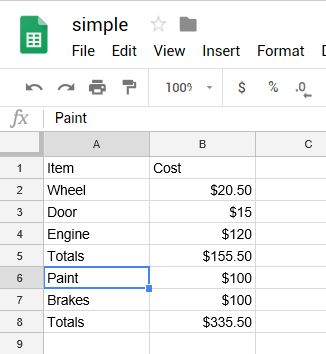
// Our Google Spreadsheet now looks like this:
//
// The JSON ValueRange for the cells in the above spreadsheet is:
// {
// "range": "Sheet1!A1:B5",
// "majorDimension": "ROWS",
// "values": [
// [
// "Item",
// "Cost"
// ],
// [
// "Wheel",
// "$20.50"
// ],
// [
// "Door",
// "$15"
// ],
// [
// "Engine",
// "$100"
// ],
// [
// "Totals",
// "$135.50"
// ]
// ]
// }
// This example will append 6 cells (3 rows / 2 columns).
// We'll be appending the following:
//
// "Paint", "$100"
// "Brakes", "$100"
// "New Total", "$335.50"
//
// The range of cells we'll be appending is A1:B5
// Therefore, the ValueRange JSON we'll be sending in our POST body is:
// {
// "range": "Sheet1!A1:B5",
// "majorDimension": "ROWS",
// "values": [
// [
// "Paint",
// "$100"
// ],
// [
// "Brakes",
// "$100"
// ],
// [
// "New Total",
// "$335.50"
// ]
// ]
// }
let json = CkoJsonObject()!
json.updateString(jsonPath: "range", value: "Sheet1!A1:B5")
json.updateString(jsonPath: "majorDimension", value: "ROWS")
json.i = 0
json.j = 1
json.updateString(jsonPath: "values[i][j]", value: "Paint")
json.j = 1
json.updateString(jsonPath: "values[i][j]", value: "$100")
json.i = 1
json.j = 0
json.updateString(jsonPath: "values[i][j]", value: "Brakes")
json.j = 1
json.updateString(jsonPath: "values[i][j]", value: "$100")
json.i = 2
json.j = 0
json.updateString(jsonPath: "values[i][j]", value: "Totals")
json.j = 1
json.updateString(jsonPath: "values[i][j]", value: "$335.50")
json.emitCompact = false
print("\(json.emit()!)")
// Send the POST to:
// https://sheets.googleapis.com/v4/spreadsheets/{spreadsheetId}/values/{range}:append?valueInputOption=USER_ENTERED
http.setUrlVar(name: "spreadsheetId", value: "1_SO2L-Y6nCayNpNppJLF0r9yHB2UnaCleGCKeE4O0SA")
http.setUrlVar(name: "range", value: "Sheet1!A1:B5")
let resp = CkoHttpResponse()!
success = http.httpJson(verb: "POST", url: "https://sheets.googleapis.com/v4/spreadsheets/{$spreadsheetId}/values/{$range}:append?valueInputOption=USER_ENTERED", json: json, contentType: "application/json", response: resp)
if success == false {
print("\(http.lastErrorText!)")
return
}
print("response status code = \(resp.statusCode.intValue)")
print("response JSON = \(resp.bodyStr!)")
// Sample output:
//
// response status code = 200
// response JSON = {
// "spreadsheetId": "1_SO2L-Y6nCayNpNppJLF0r9yHB2UnaCleGCKeE4O0SA",
// "tableRange": "Sheet1!A1:B5",
// "updates": {
// "spreadsheetId": "1_SO2L-Y6nCayNpNppJLF0r9yHB2UnaCleGCKeE4O0SA",
// "updatedRange": "Sheet1!A6:B8",
// "updatedRows": 3,
// "updatedColumns": 2,
// "updatedCells": 6
// }
// }
//
// Our Google Spreadsheet now looks like this:
//  }
}