Unicode C++
Unicode C++
Sign PDF: Choosing RSASSA-PSS or PKCS1-v1_5 and Hash Algorithm
See more PDF Signatures Examples
This example demonstrates how to choose between RSASSA-PSS vs. PKCS1-v1_5 and the hash algorithm when signing a PDF.Chilkat Unicode C++ Downloads
#include <CkPdfW.h>
#include <CkJsonObjectW.h>
#include <CkCertW.h>
void ChilkatSample(void)
{
bool success = false;
// This example requires the Chilkat API to have been previously unlocked.
// See Global Unlock Sample for sample code.
CkPdfW pdf;
// Load a PDF to be signed.
// The "hello.pdf" is available at https://chilkatsoft.com/hello.pdf
success = pdf.LoadFile(L"qa_data/pdf/hello.pdf");
if (success == false) {
wprintf(L"%s\n",pdf.lastErrorText());
return;
}
// Options for signing are specified in JSON.
CkJsonObjectW json;
// In most cases, the signingCertificateV2 attribute is needed.
json.UpdateInt(L"signingCertificateV2",1);
// ---------------------------------------------------------------------------------------------------------------------------
// This example is the same as the example at Sign a PDF (Simplest Example Possible)
// but with the following lines added to specify the signature scheme and hash algorithm.
// The signature schemes PKCS-v1_5 and RSASSA-PSS have differences.
// PKCSV1_5 is deterministic. The same message and key will produce an identical signature value each time.
// PSS is randomized and will produce a different signature value each time.
// To choose the hash algorithm:
// (The typical choices are sha1, sha256, sha384, and sha512.)
json.UpdateString(L"hashAlgorithm",L"sha256");
// To choose PKCSV1_5:
json.UpdateString(L"signingAlgorithm",L"pkcs");
// Alternatively, to choose RSASSA-PSS:
json.UpdateString(L"signingAlgorithm",L"pss");
// If not specified, the default is SHA256 with PKCS-v1_5.
// The remainder of this example is the same as the example at Sign a PDF (Simplest Example Possible)
// ---------------------------------------------------------------------------------------------------------------------------
// Put the signature on page 1, top left
json.UpdateInt(L"page",1);
json.UpdateString(L"appearance.y",L"top");
json.UpdateString(L"appearance.x",L"left");
// Use a font scale of 10.0
json.UpdateString(L"appearance.fontScale",L"10.0");
// In this example, the appearance of the digital signature will contain three lines:
// 1) The signing certificate's common name
// 2) The current date/time
// 3) Some arbitrary text.
// The keyword "cert_cn" is replaced with the Certificate's Subject Common Name.
// The keyword "current_dt" is replaced with the current date/time.
// Any number of appearance text lines can be added.
json.UpdateString(L"appearance.text[0]",L"Digitally signed by: cert_cn");
json.UpdateString(L"appearance.text[1]",L"current_dt");
json.UpdateString(L"appearance.text[2]",L"The crazy brown fox jumps over the lazy dog.");
// Load the signing certificate. (Use your own certificate.)
CkCertW cert;
success = cert.LoadPfxFile(L"qa_data/pfx/myPdfSigningCert.pfx",L"secret");
if (success == false) {
wprintf(L"%s\n",cert.lastErrorText());
return;
}
// Tell the pdf object to use the certificate for signing.
success = pdf.SetSigningCert(cert);
if (success == false) {
wprintf(L"%s\n",pdf.lastErrorText());
return;
}
success = pdf.SignPdf(json,L"qa_output/hello_signed.pdf");
if (success == false) {
wprintf(L"%s\n",pdf.lastErrorText());
return;
}
wprintf(L"The PDF has been successfully cryptographically signed.\n");
// The appearance of the signature appears in Adobe Acrobat as shown here:
// 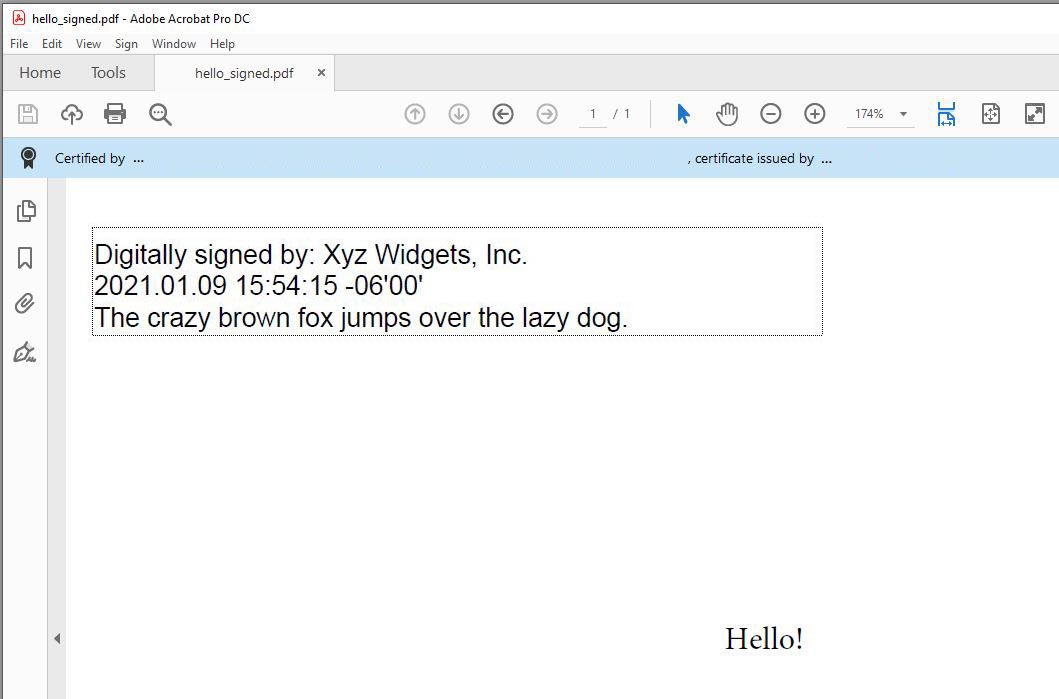 }
}